Access levels, and when someone leaves
Three access levels decide who sees what. When somebody leaves, deactivating them ends their access and keeps every hour they worked.
The three access levels
- Owner: everything, including business details, billing, the payroll connection, pay rate imports, loadings, and who has manager or owner access.
- Manager: rosters, approvals, the payroll send, adding employees and setting pay rates.
- Employee: their own shifts, clocking in, timesheets, availability and requests, in the staff app.
Change somebody’s level from their page on Team with Edit, then Access level. Only the owner can change an access level.
Limit managers to their own venues
Open Settings, then Business
Under What managers can reach, choose Only the venues they are assigned to. Only the owner sees this setting.
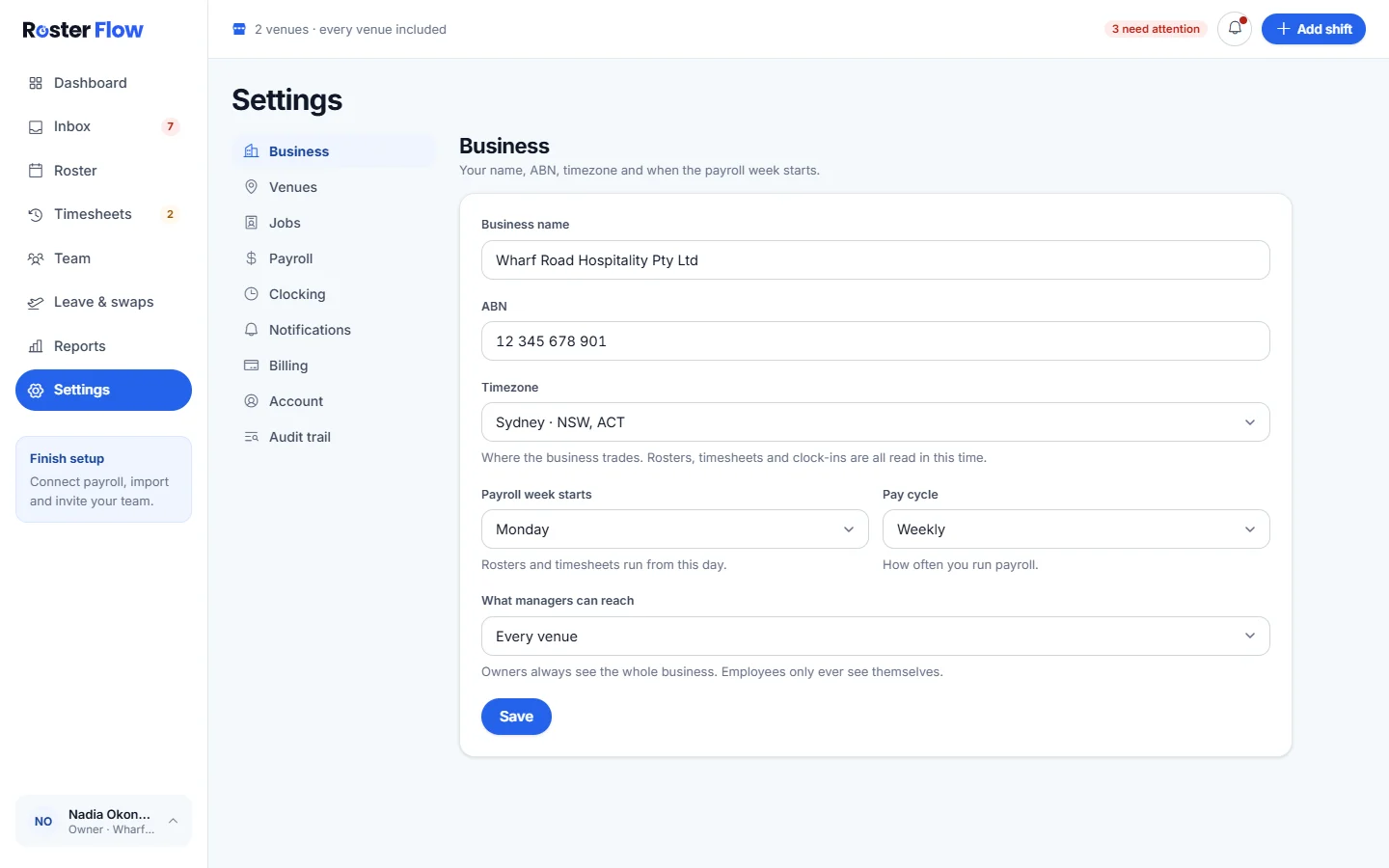
Give each manager their venue
Open the manager’s page from Team, press Edit and choose their Venue.
What changes for them
They see only their venues on the roster, timesheets, team, reports and Inbox, with a note such as You are seeing part of this week. Clocking and notification settings become read only, and they cannot add venues.
When someone leaves
Open their page from Team
The owner sees a box headed Deactivate with the person’s first name.
Press Deactivate, then confirm
They lose access straight away and stop counting towards your plan. Their timesheets and history stay.
Bring them back later
Deactivated people are listed at the bottom of Team. The owner presses Reactivate, and they are sent an invite.
More than one workplace
Somebody who works at two businesses on Roster Flow moves between them with Switch workplace: in the account menu for managers, or under More, then Security, in the staff app. Switching signs them in at the other business.
Questions
What is the difference between an owner and a manager?
A manager runs rosters, approvals and the payroll send. The owner can also change business details, billing, the payroll connection, loadings and access levels.
Does deactivating somebody delete their hours?
No. It ends their access and stops them counting towards your plan. Their timesheets and history stay, and the owner can reactivate them later.
Can a manager deactivate somebody who has left?
No. Deactivating and reactivating people are for the owner.
Next
Still stuck? Tell us what you were trying to do and which screen you were on.