Set your business details, pay week and jobs
The details every roster and timesheet runs on: when the week starts, how often you pay, and what the jobs are called.
Business details
Open Settings, then Business
Only the owner can change these. Managers can see them, with a note saying only the owner can change them.
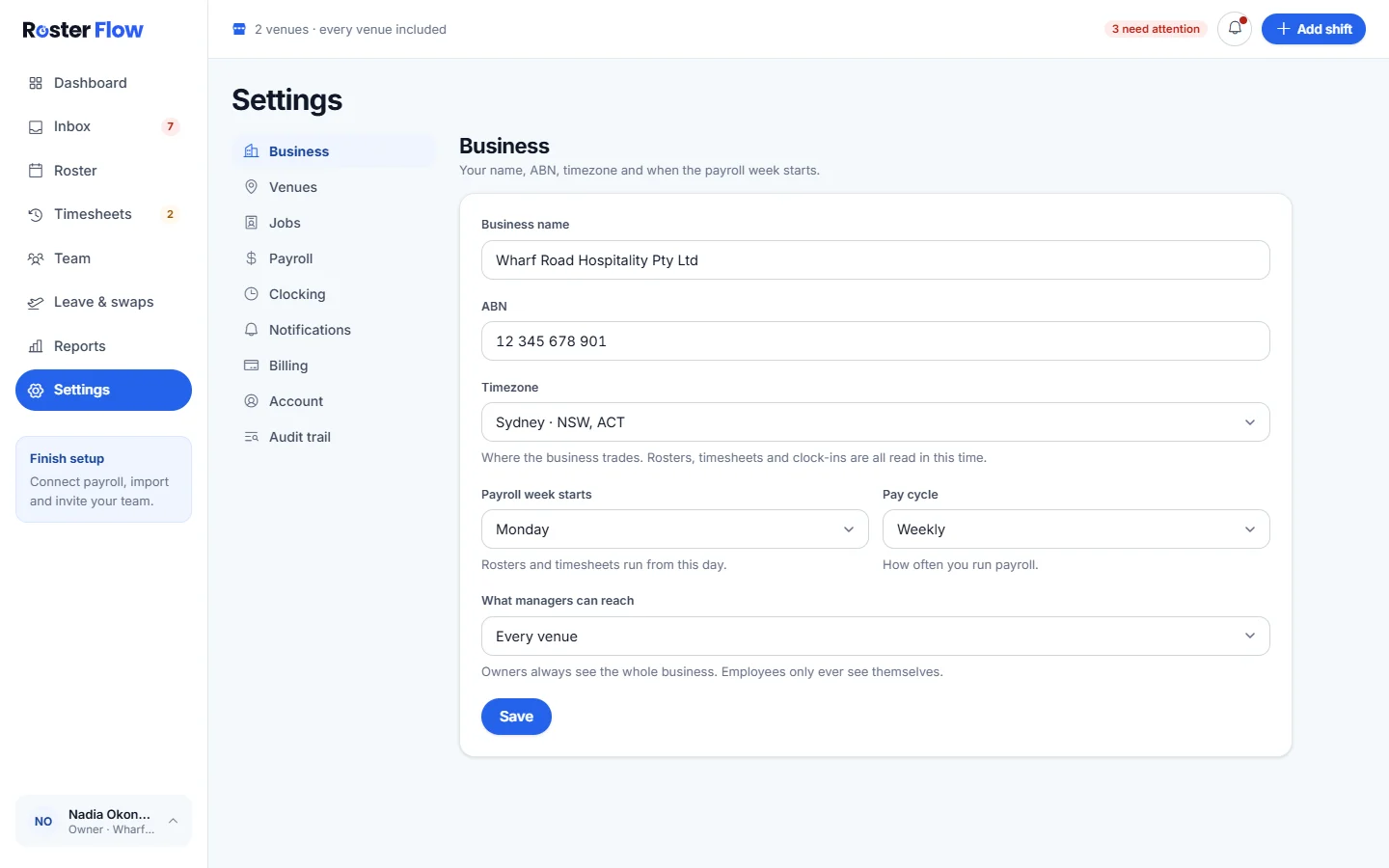
Change the name or ABN, then press Save
Save is for Business name and ABN, and the message says Business details saved.
Set the timezone, week start and pay cycle
Timezone, Payroll week starts and Pay cycle (Weekly or Fortnightly) save as soon as you change them. Rosters and timesheets run from the day the payroll week starts.
What managers can reach
The owner chooses Every venue or Only the venues they are assigned to under What managers can reach. Owners always see the whole business, and employees only ever see themselves. Access levels, and when someone leaves explains what a limited manager can do.
Jobs
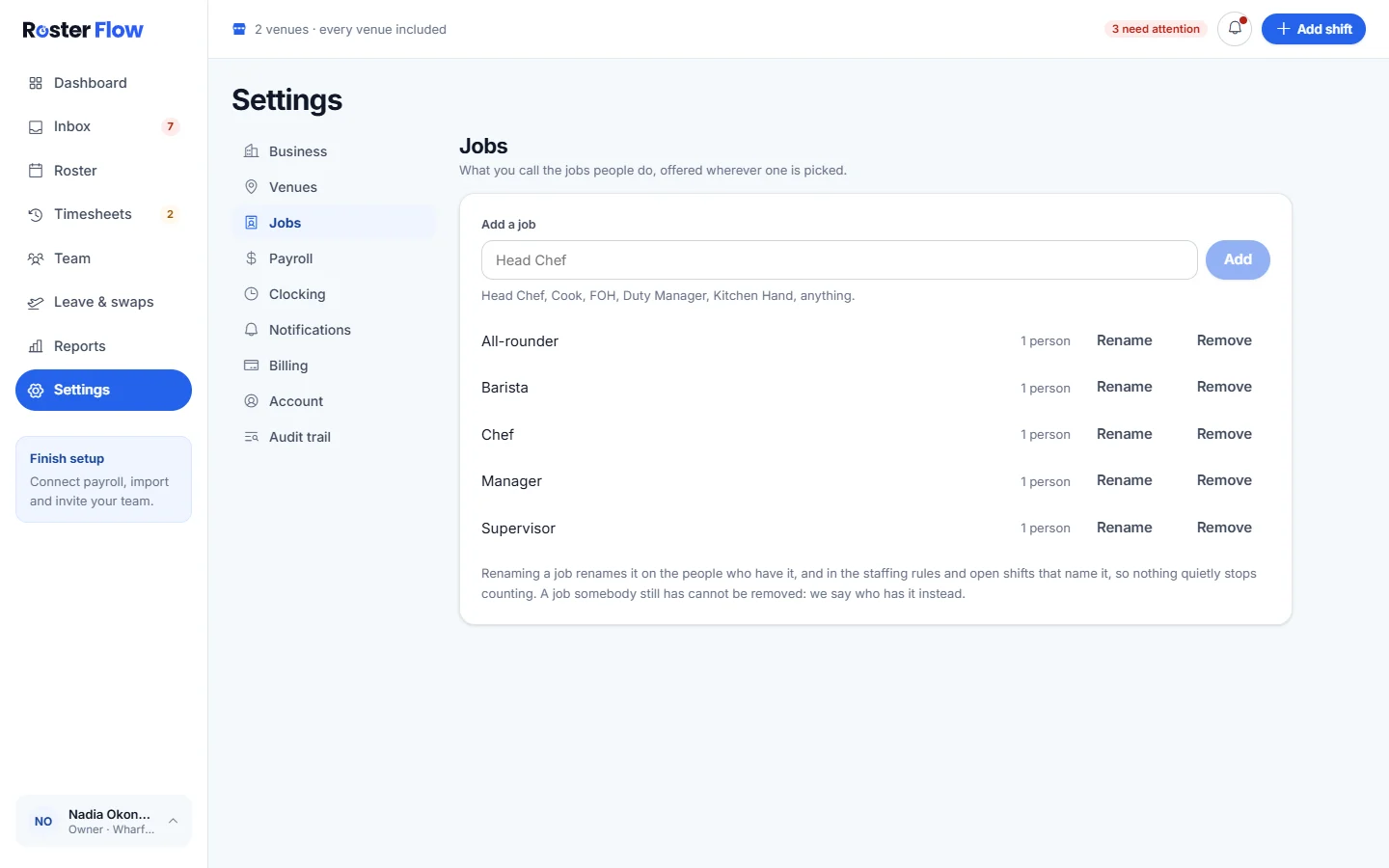
Open Settings, then Jobs
Each job shows how many people have it.
Add a job
Type it under Add a job and press Add. Jobs are offered wherever one is picked, such as when adding staff or offering a shift. Typing a new job while adding somebody adds it to the list as well.
Rename or remove a job
Rename changes the job for everyone who has it, and Remove takes it off the list. A manager limited to their own venues can add jobs but not rename or remove them.
Questions
What does changing the payroll week start day change?
The first day of every roster week and every timesheet week from then on. Weeks already approved keep the dates they had.
Why can a manager not change the business name?
Business details are the owner’s to change. A manager can see them, and the screen says only the owner can change them.
Does removing a job change anyone’s pay?
No. Jobs are labels for rostering, offers and reports. Pay rates are set on each person, and payroll applies them.
Next
Still stuck? Tell us what you were trying to do and which screen you were on.