Create your account and set up the business
Everything a new business does in its first sitting: create the account, decide whether to connect payroll now, bring the team in, and learn what the dashboard is telling you.
You need an email address you can open and the name the business trades under. A payroll login is only needed if you connect Xero during setup, and that can wait.
Create the account
Open the sign up page
Go to start free and fill in Business name, Your name, Email and Password. The password needs at least 10 characters and one number or symbol.
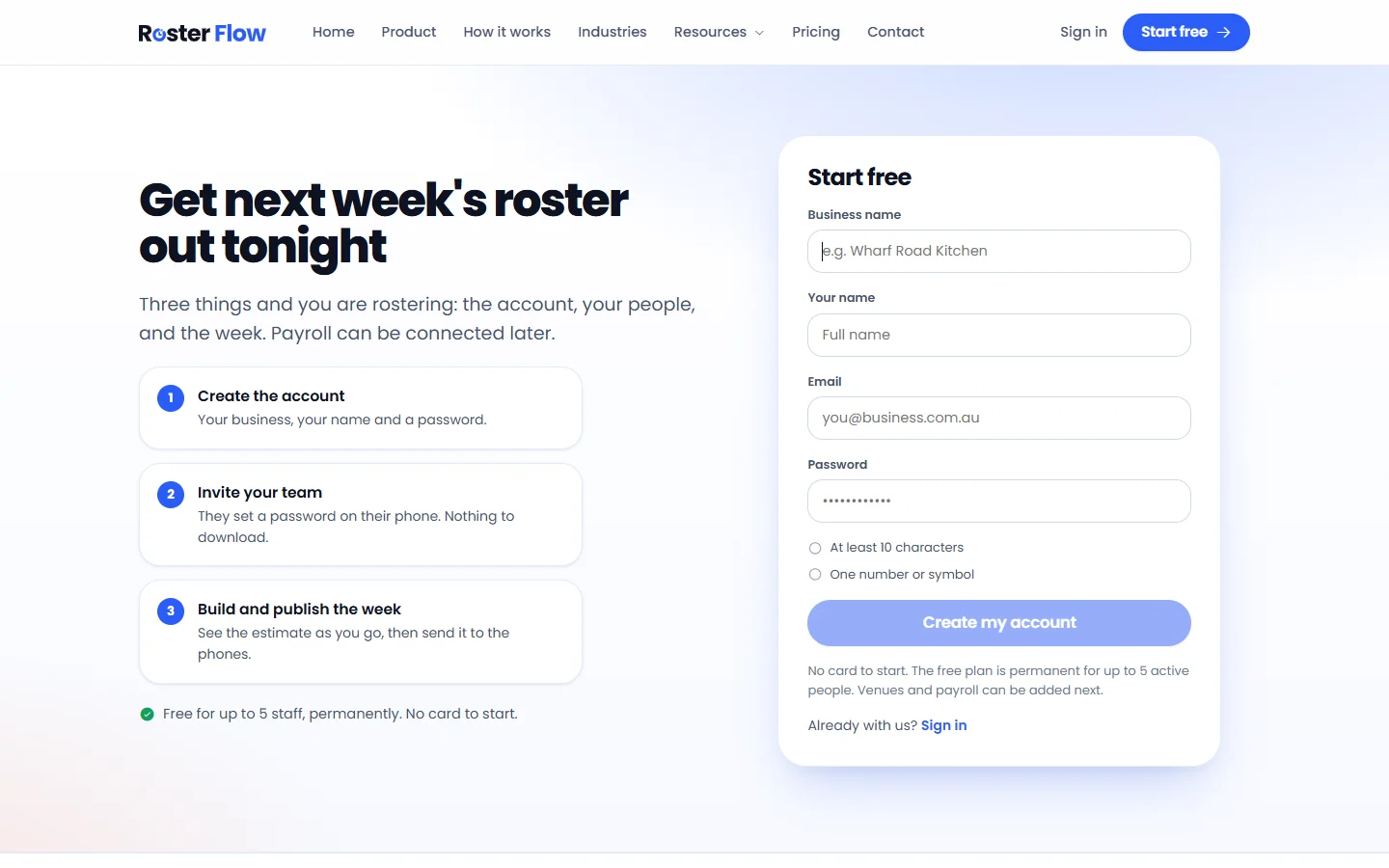
The sign up page. No card is needed to start. Press Create my account
The button turns on once every field is filled in properly. Your business name also becomes your first venue, which you can rename in Settings, under Venues.
Work through setup, or skip it
After signing up you land on setup, which counts its steps at the top. A new account starts at Connect your payroll, because the business name is already filled in.
Connect your payroll
Choose Xero, then Connect Xero. You sign in on Xero’s own page, and only approved hours are ever sent. Only the owner can connect payroll. MYOB is marked Coming soon and cannot be chosen yet.
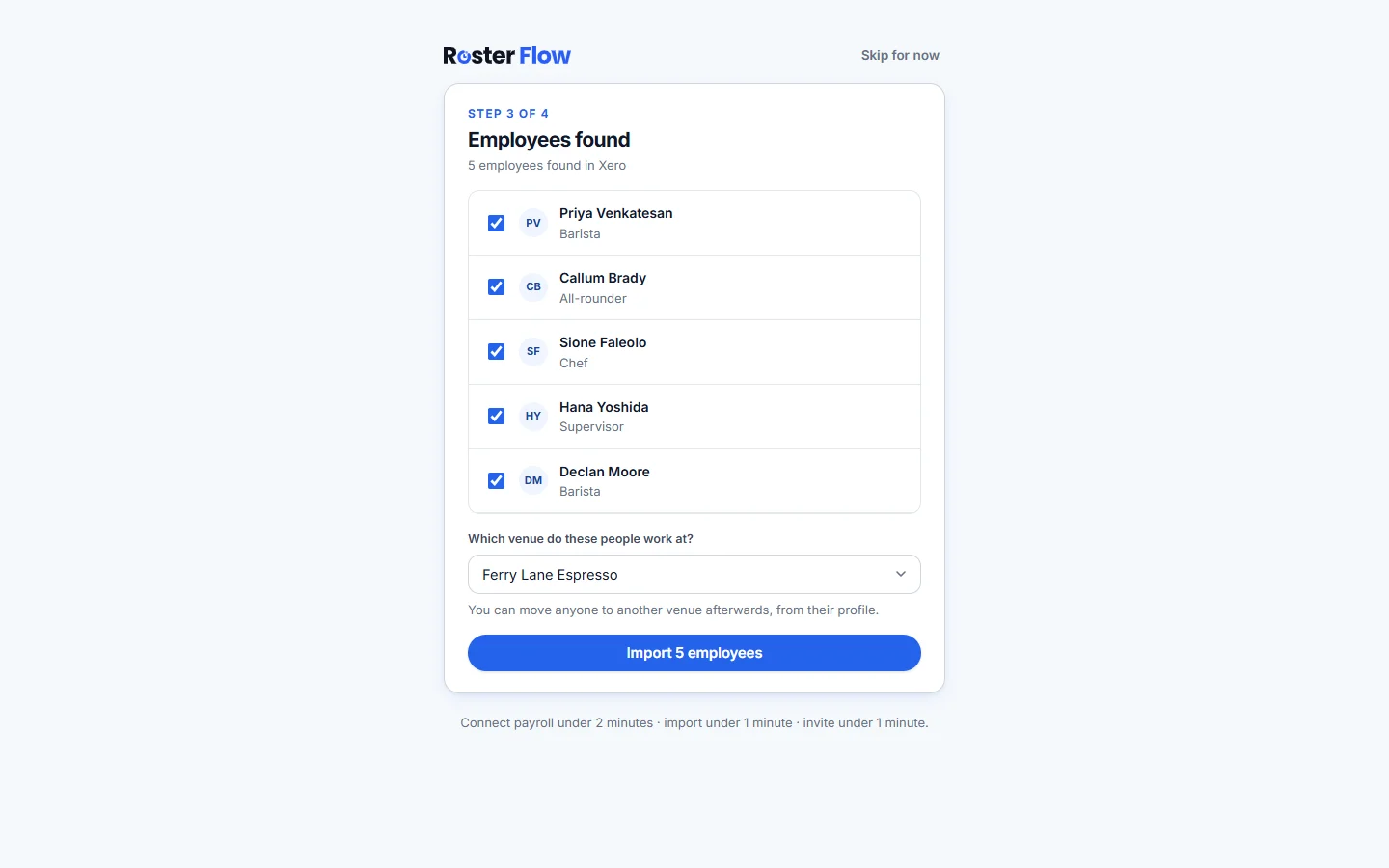
Import the employees found
Setup lists the employees in your payroll account, all ticked. With more than one venue it asks Which venue do these people work at? Press the Import button, which shows how many people are ticked. Importing does not email anybody.
Invite your team
Invite everyone emails each person a link to set their own password. When setup is finished, Go to the dashboard takes you in.
Or skip for now
Skip for now at the top right takes you to the dashboard and hides the Finish setup card. Until you skip or finish, that card stays in the sidebar so you can come back to setup.
Find your way around
The sidebar holds everything a manager does: Dashboard, Inbox, Roster, Timesheets, Team, Leave & swaps, Reports and Settings. Inbox and Timesheets show a count when something is waiting.
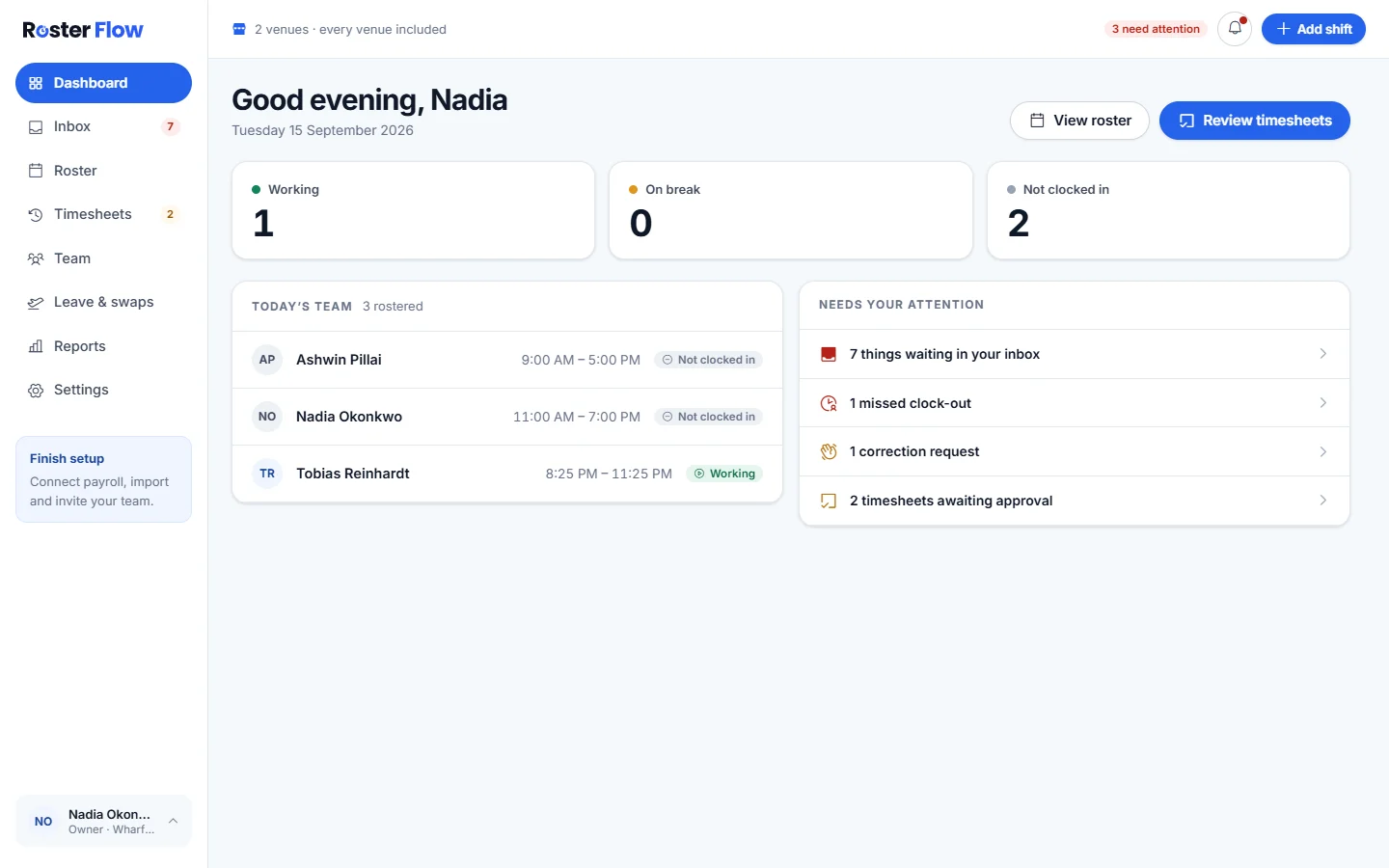
- Working, On break and Not clocked in count today’s rostered people by where they are up to.
- Today’s team lists everyone rostered today with their shift and a status.
- Needs your attention lists what is waiting, such as missed clock-outs, correction requests, timesheets to approve or a week still in draft. Each line opens the screen that deals with it.
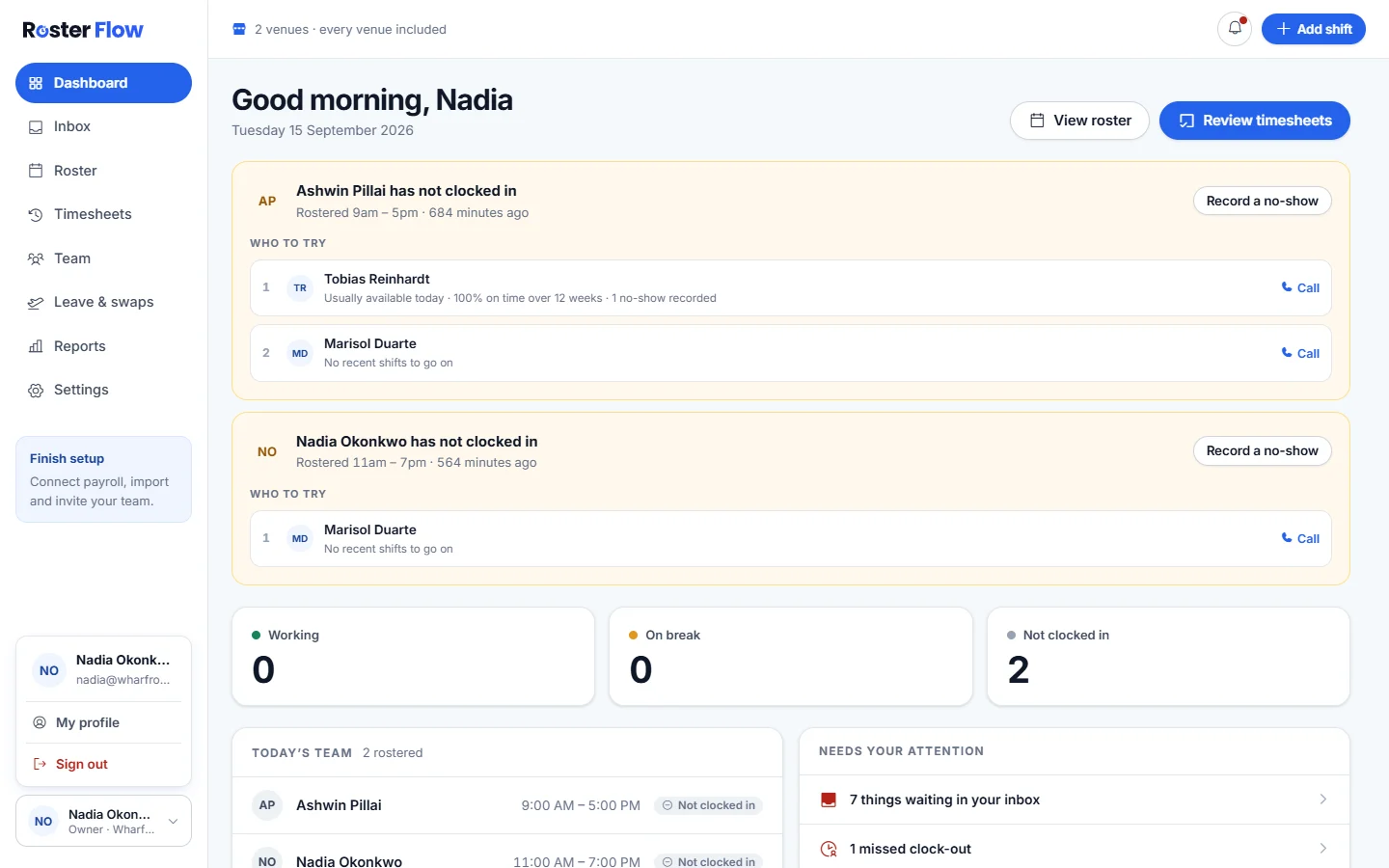
Your name sits at the bottom of the sidebar. Open it for My profile, Switch workplace if you work at more than one business, and Sign out.
Questions
Do I have to connect payroll to use Roster Flow?
No. Rosters, clocking in, timesheets and reports all work without payroll connected. Connecting is what lets approved hours be sent to Xero, and it can be done later in Settings, under Payroll. MYOB is coming soon.
Is a card needed to create a Roster Flow account?
No. A new business is on the free plan, which covers up to 5 active people for as long as you need it. Starting a paid plan is free for the first 28 days, and nothing is charged until they are up.
How do I get back to setup after skipping it?
Skipping hides the Finish setup card. Connect payroll in Settings, under Payroll, and bring people in from Team with Import from payroll or Add staff.
Next
Still stuck? Tell us what you were trying to do and which screen you were on.