Create your first roster
Build a week one shift at a time, or copy last week and change what moved. Nothing reaches your team until you publish.
Rosters live under Roster in the sidebar. The week is a grid of people and days. The arrows beside the dates move between weeks, and Week and Day change the view. With more than one venue, pick one at the top or stay on All venues.
Start the week
Open Roster and go to the week
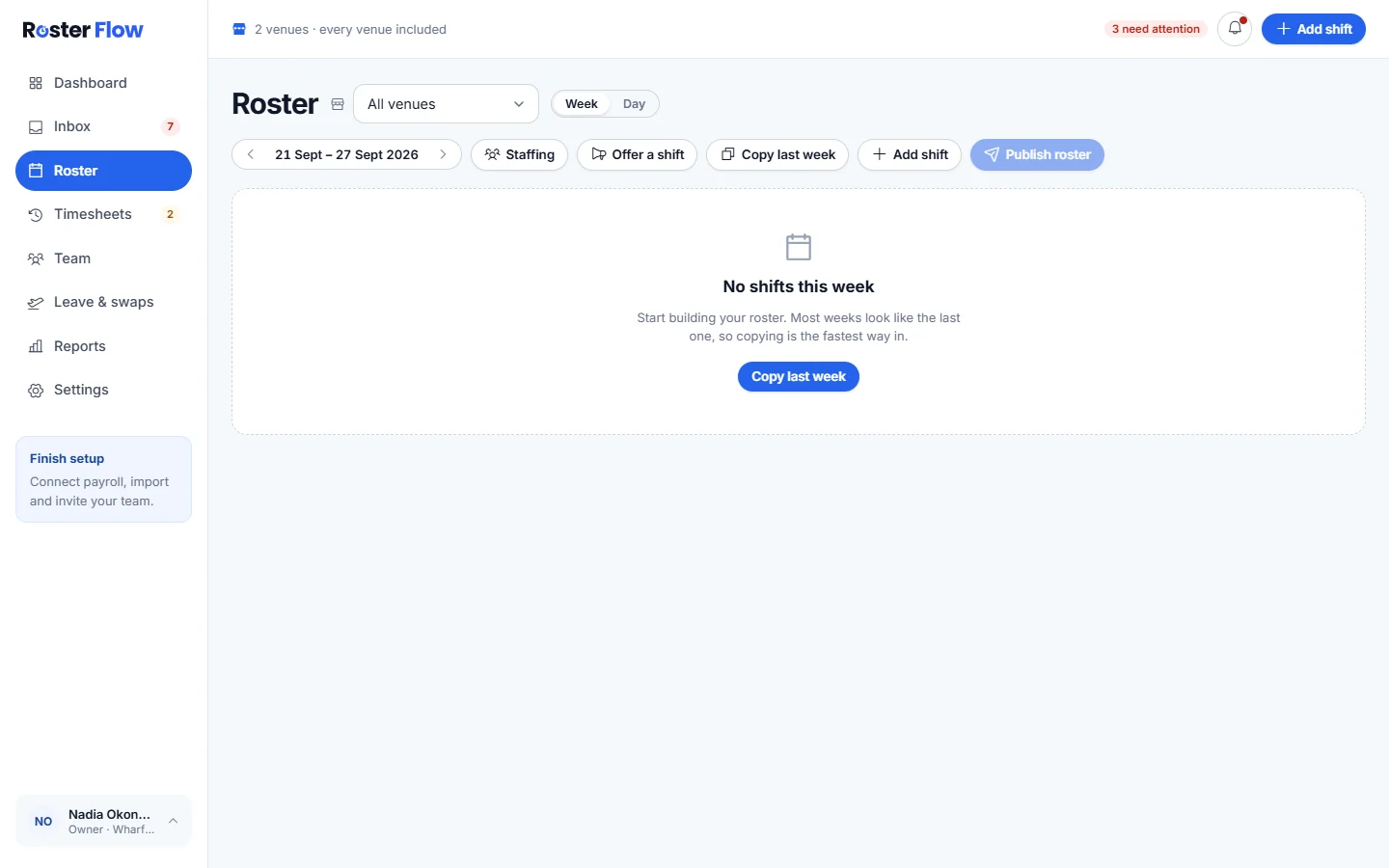
A week with nothing on it says No shifts this week. Most weeks look like the last one, so Copy last week is the quickest start once you have one.
Add a shift
Click an empty cell in a person’s row, or press Add shift above the grid. Choose the Employee, Date, Venue, Start and Finish.
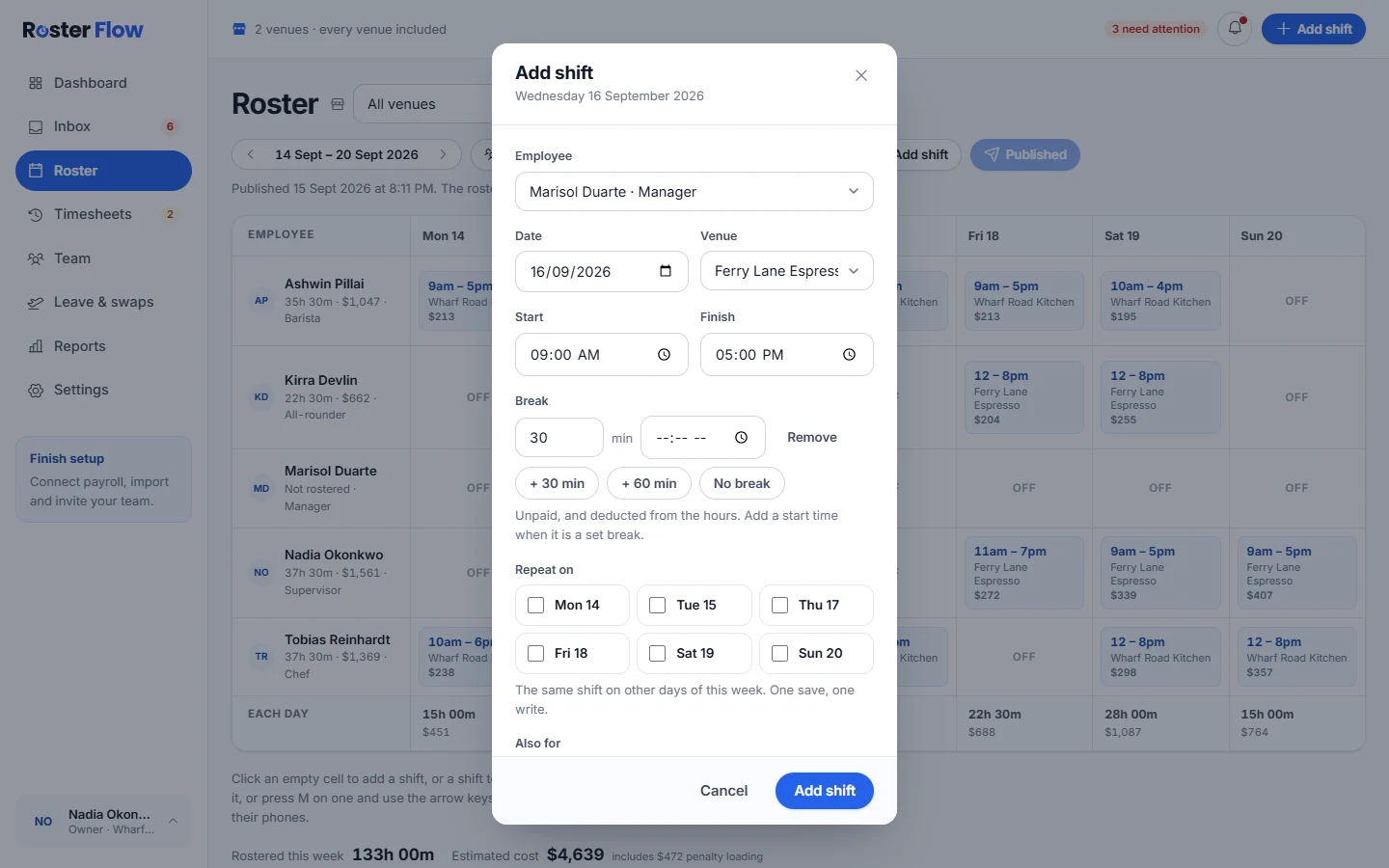
The paid time and cost are worked out as you fill it in. Set the break
Use + 30 min, + 60 min or No break, or type the minutes. Breaks are unpaid and come off the hours. Add a start time when a break is at a set time.
Repeat it without retyping
Tick days under Repeat on to put the same shift on other days this week, and people under Also for to give everyone ticked the same shift. The button then says how many shifts it will add.
Save the shift
Press Add shift. If the person said they cannot work then, the dialog shows Availability conflict, and Assign anyway saves it regardless.
Change, copy and move shifts
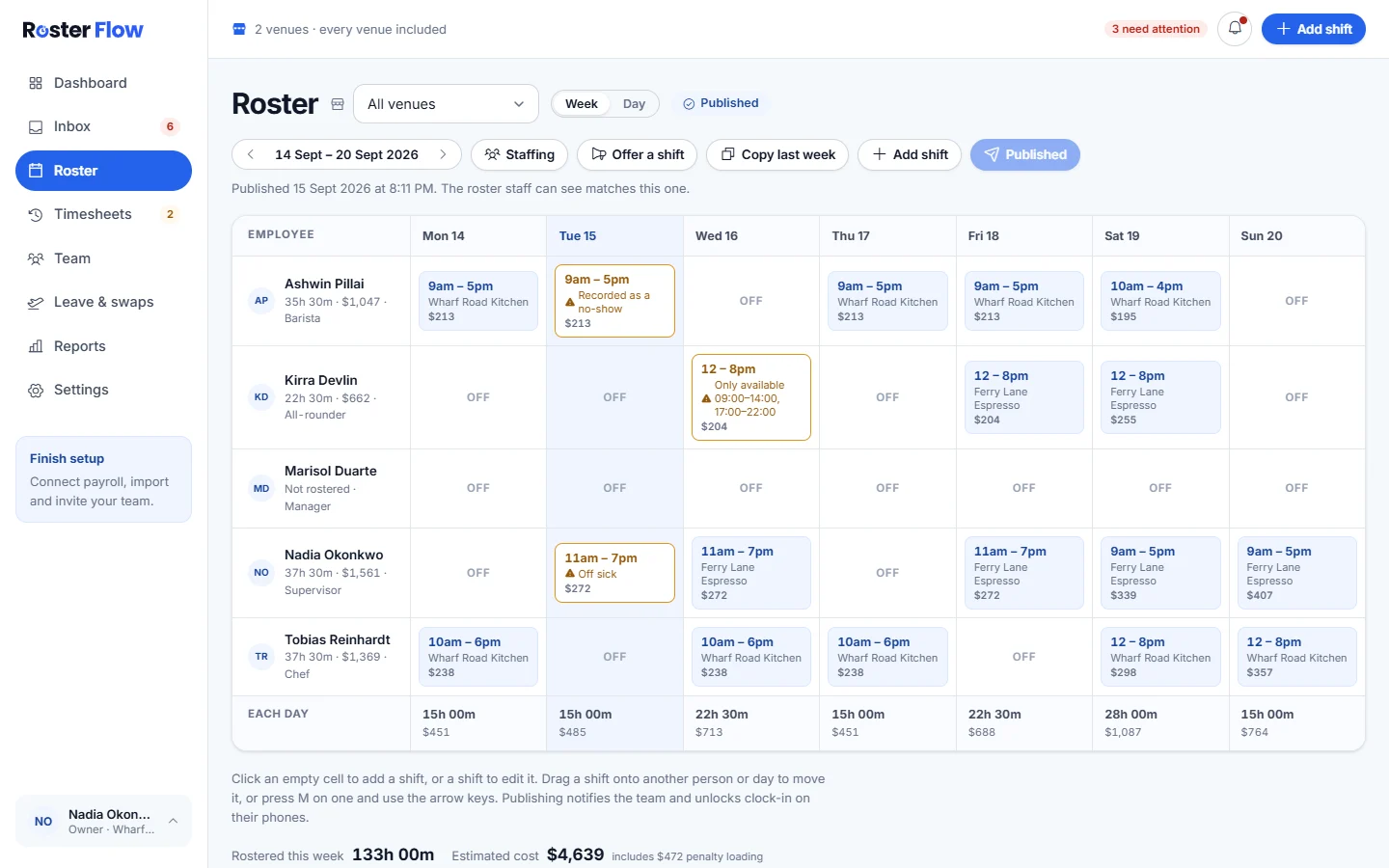
- Click a shift to open Edit shift, where Duplicate copies it and Delete removes it.
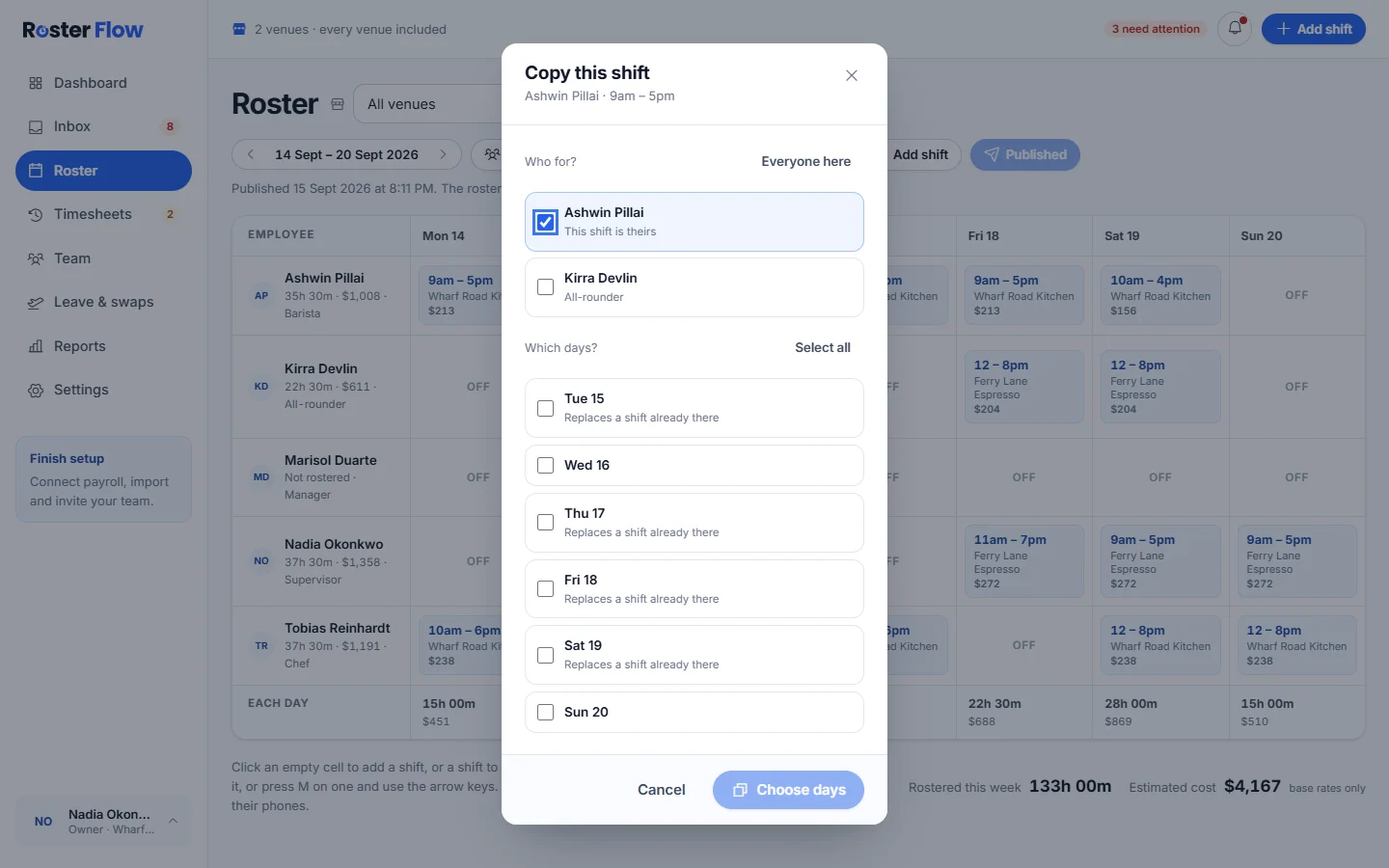
- On a computer, hover over a shift and press its copy icon to open Copy this shift, then choose who it is for and which days.
- Drag a shift onto another person or day to move it. With a keyboard, press M on a shift and use the arrow keys.
- Copy last week replaces the week with last week’s shifts as drafts, and skips any that clash.
Check the cost as you build
The bar under the grid shows the hours Rostered this week and the Estimated cost. It uses each person’s base rate, plus weekend and public holiday loadings where the business has set them, and leaves out casual loading, overtime and allowances. Roster Flow does not calculate pay. Set pay rates for anybody without one.
Look at one day
Day shows one day at a time, with how many people are on and the total hours.
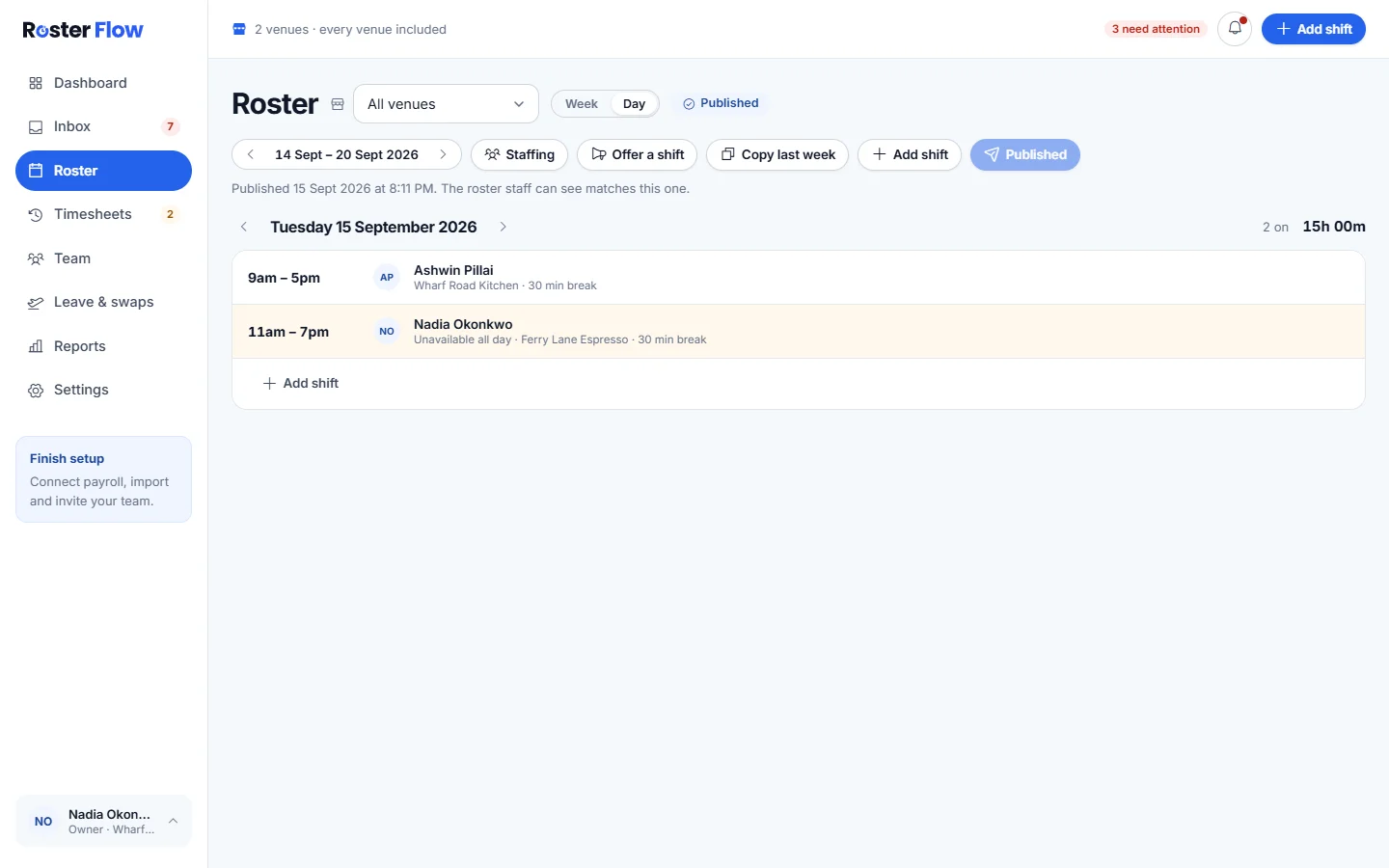
When the week looks right, publish it. Until then it is a draft that only managers can see.
Questions
Why is there no cost showing on the roster?
Nobody has a pay rate yet. Set a base rate on each person’s Pay tab, or have the owner import rates from Xero, and the estimate fills in.
Can I save a week to use again?
There are no saved weeks. Copy last week brings the previous week across as drafts, and Repeat on and Also for put one shift on more days and people.
How do I take back a change on the roster?
Moves, copies and deletions show a message with Undo. Press it before the message goes and the change is put back.
Next
Still stuck? Tell us what you were trying to do and which screen you were on.