Set the staffing you need and offer open shifts
Say what a day needs and the roster shows where it is short. Then offer the hours to the people who could actually work them.
Say what each day needs
Press Staffing on the roster
The dialog Staffing you need holds your rules. A rule is checked against every week you look at.
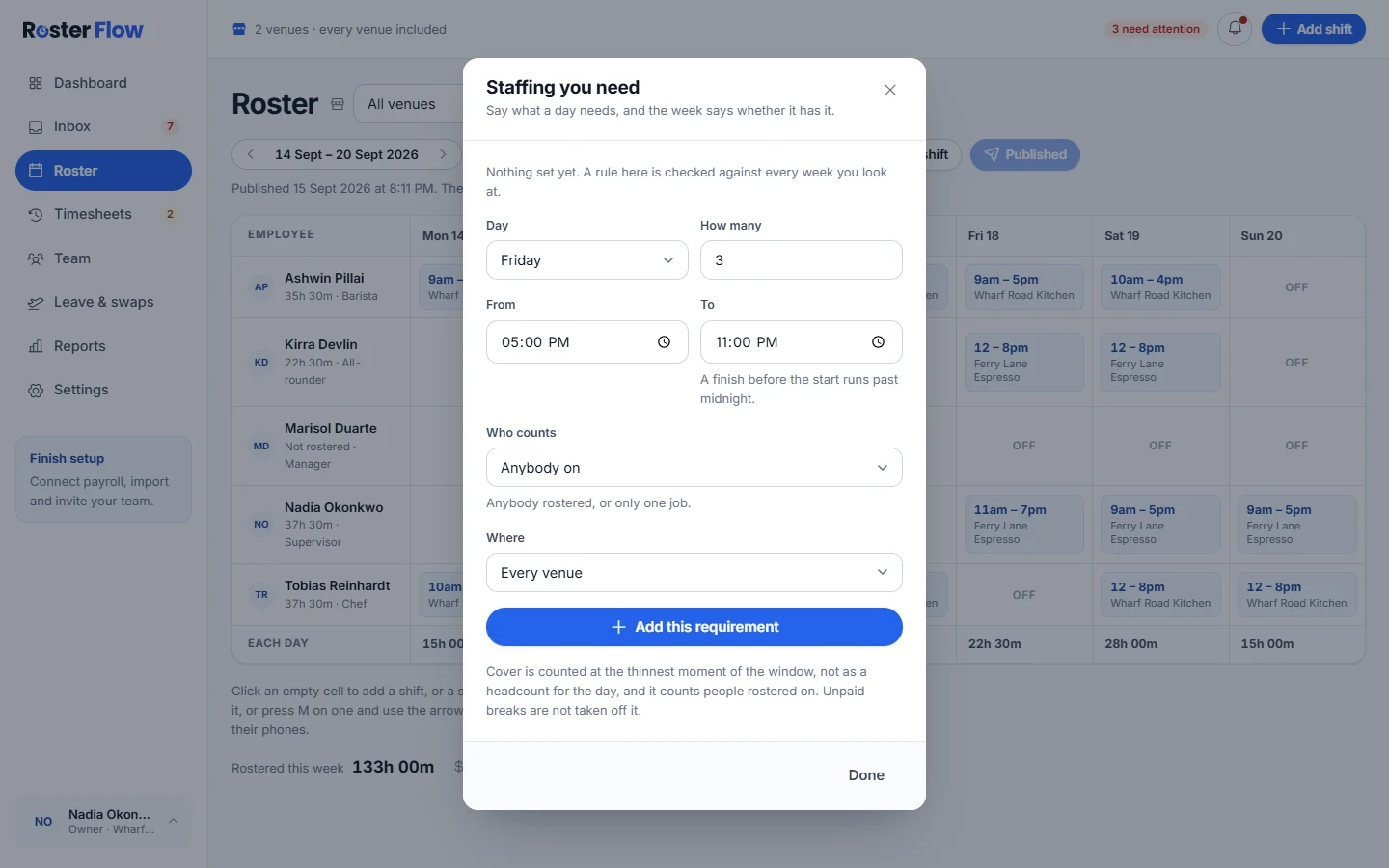
Add a requirement
Choose the Day, How many, From and To. Under Who counts, keep Anybody on or pick one job, and under Where, keep Every venue or pick one. Press Add this requirement, then Done.
Read the week
A day that falls short shows Short in its column heading, and a notice above the grid counts the short windows. Cover counts people rostered on, and unpaid breaks are not taken off it.
Offer a shift
Press Offer a shift
Set the Day, Venue, Start, Finish and Break. Leave Job as Anybody to ask everyone, and add Anything they should know. You can also offer out one of that day’s shifts instead.
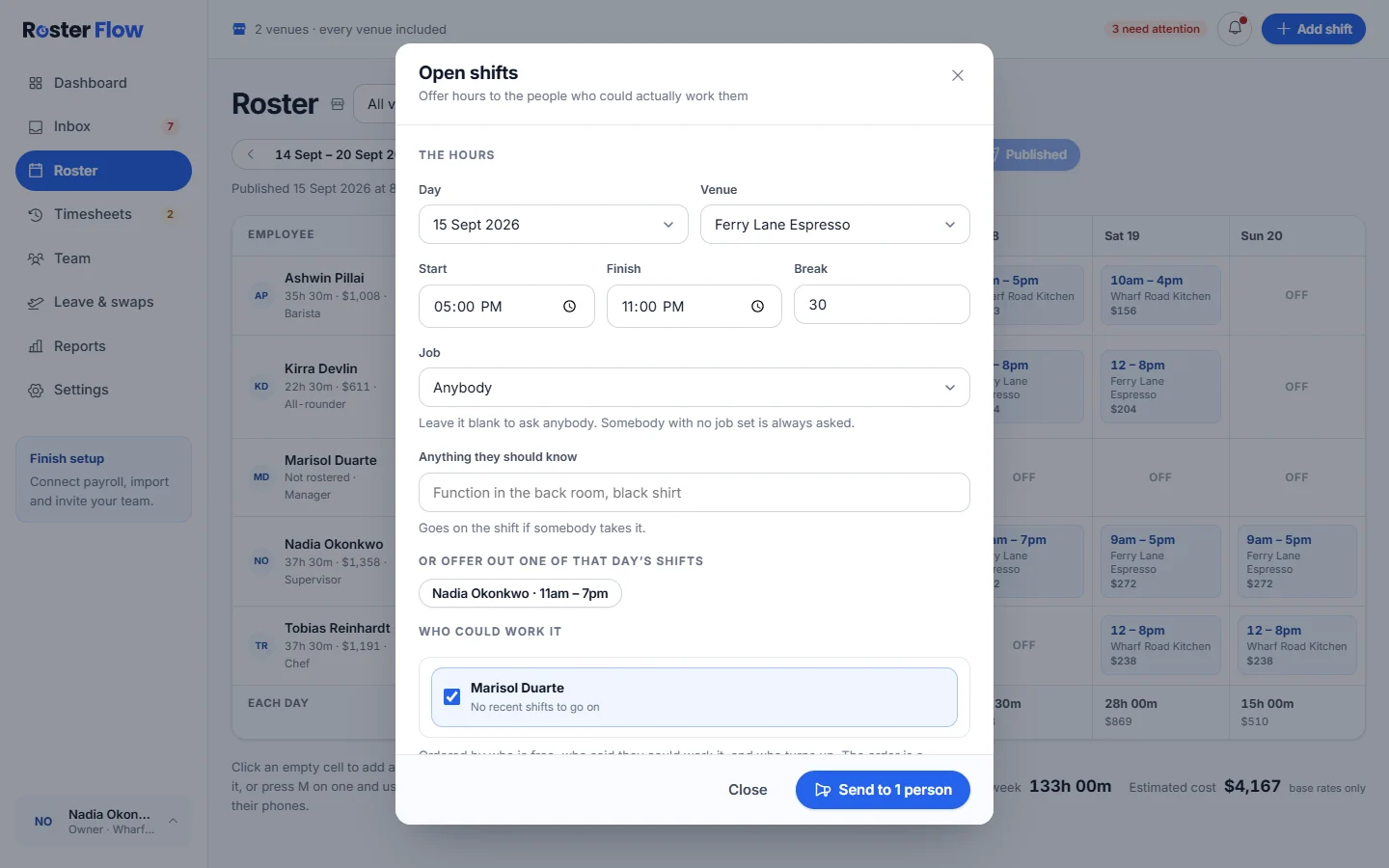
Check who could work it
Who could work it lists the people free for those hours, with Said they’re free beside anybody whose availability matches.
Send it
Press the Send to button, which says how many people will be asked. Nothing is rostered yet: each person gets A shift is going in the app and answers yes or no.
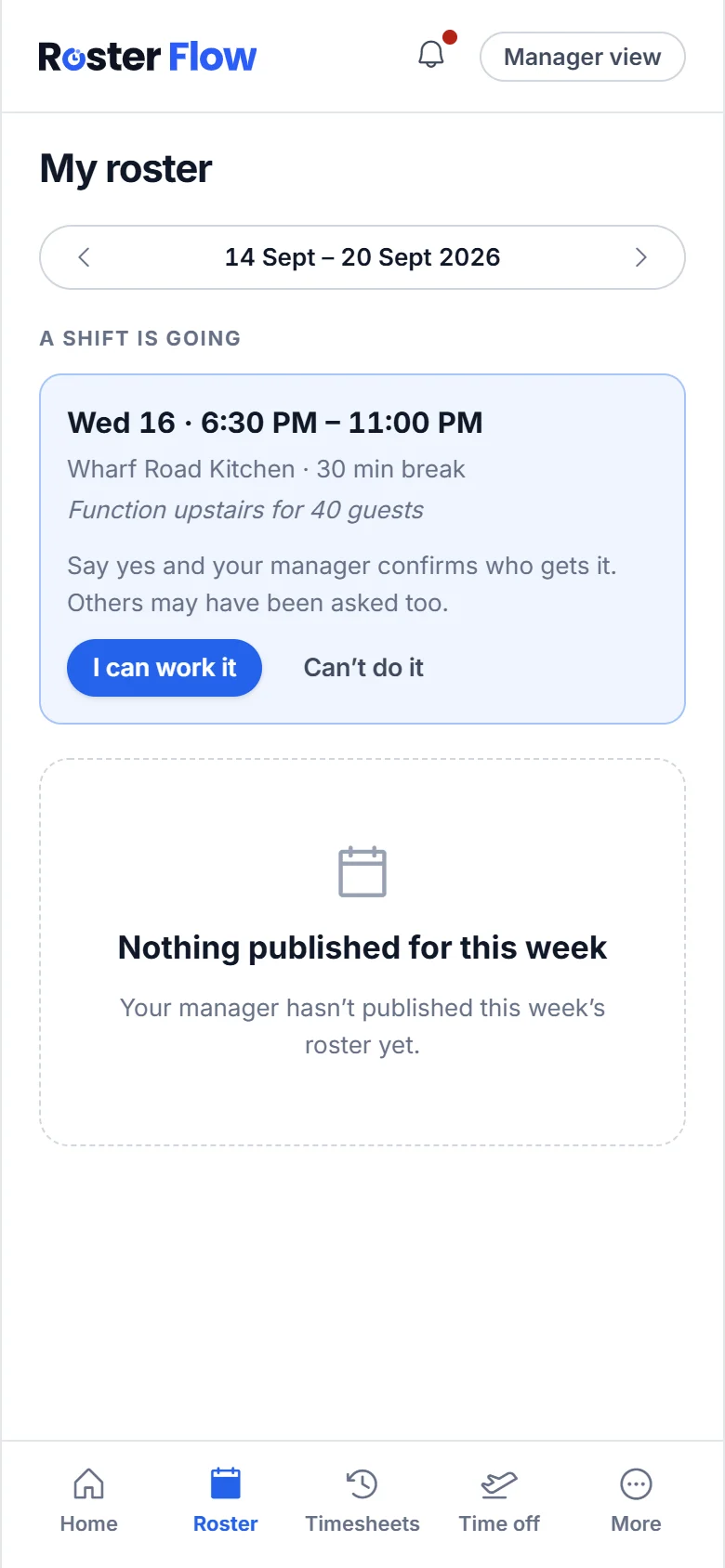
Give the shift to somebody
Open Offer a shift again
Offers you have made shows each offer and every answer, such as Can work it or Cannot work it.
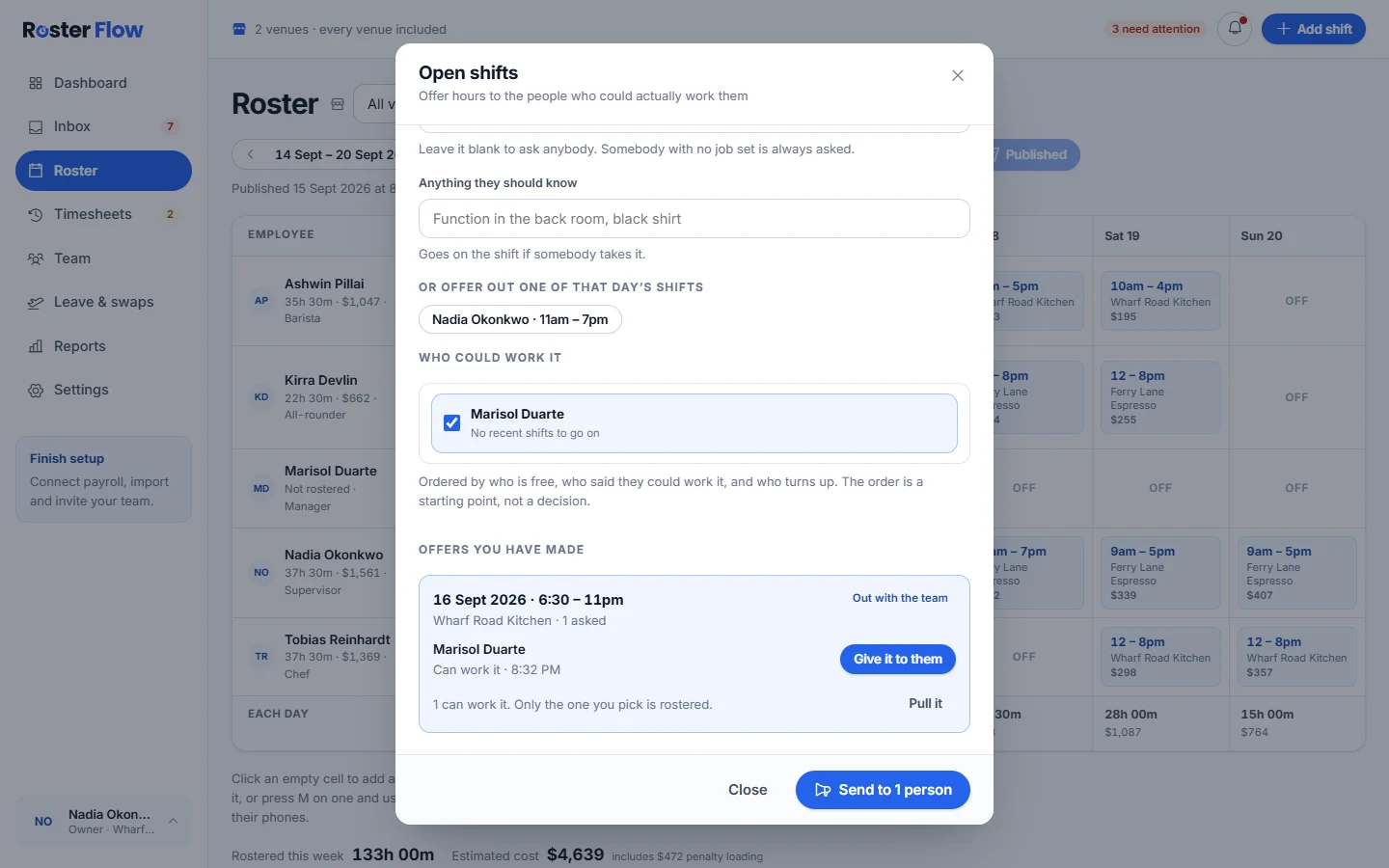
Press Give it to them
The shift is added for that person. Publish the week to put it on their roster.
Or pull the offer
Pull it withdraws an offer, and everyone who was asked is told.
When someone does not turn up
From 30 minutes after a rostered start, the dashboard shows anybody who has not clocked in, with Record a no-show and a Who to try list of people who are free, each with a call link.
Questions
Does offering a shift put it on the roster?
Not until you give it to somebody who said yes. The shift is then added for them, and it reaches their roster when you publish the week.
Who is asked when I offer a shift?
People free for those hours and, when you pick a job, the people with that job. Somebody with no job set is always asked, and anybody on leave or over a visa limit is left out.
Why does a day on the roster say it is short?
A staffing rule asks for more people on at that time than are rostered. Cover counts people rostered on, and unpaid breaks are not taken off it.
Next
Still stuck? Tell us what you were trying to do and which screen you were on.