Approve timesheets and fix what needs a decision
Every clock in lands on a timesheet. Most are ready to approve as they are, and the rest say exactly what needs deciding first.
Open Timesheets. Use the arrows beside the dates to move between weeks, and the venue list to look at one venue.
Read the week
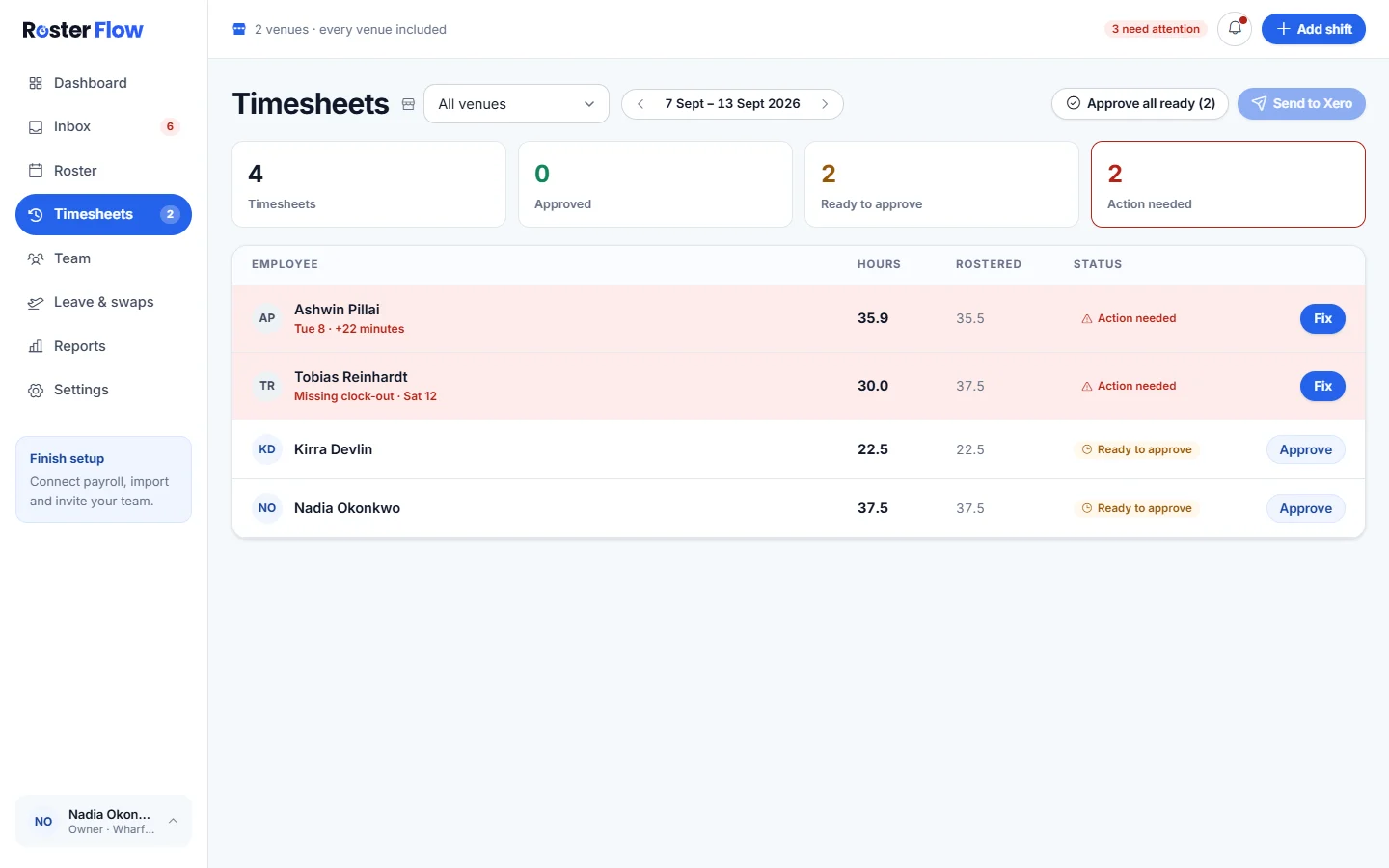
The tiles count Timesheets, Approved, Ready to approve and Action needed. Each person shows the hours worked beside the hours Rostered, and a status.
Approve the ready ones
Approve beside a person approves their timesheet. Approve all ready at the top approves every timesheet with nothing left to decide, and says how many.
Open the ones marked Action needed
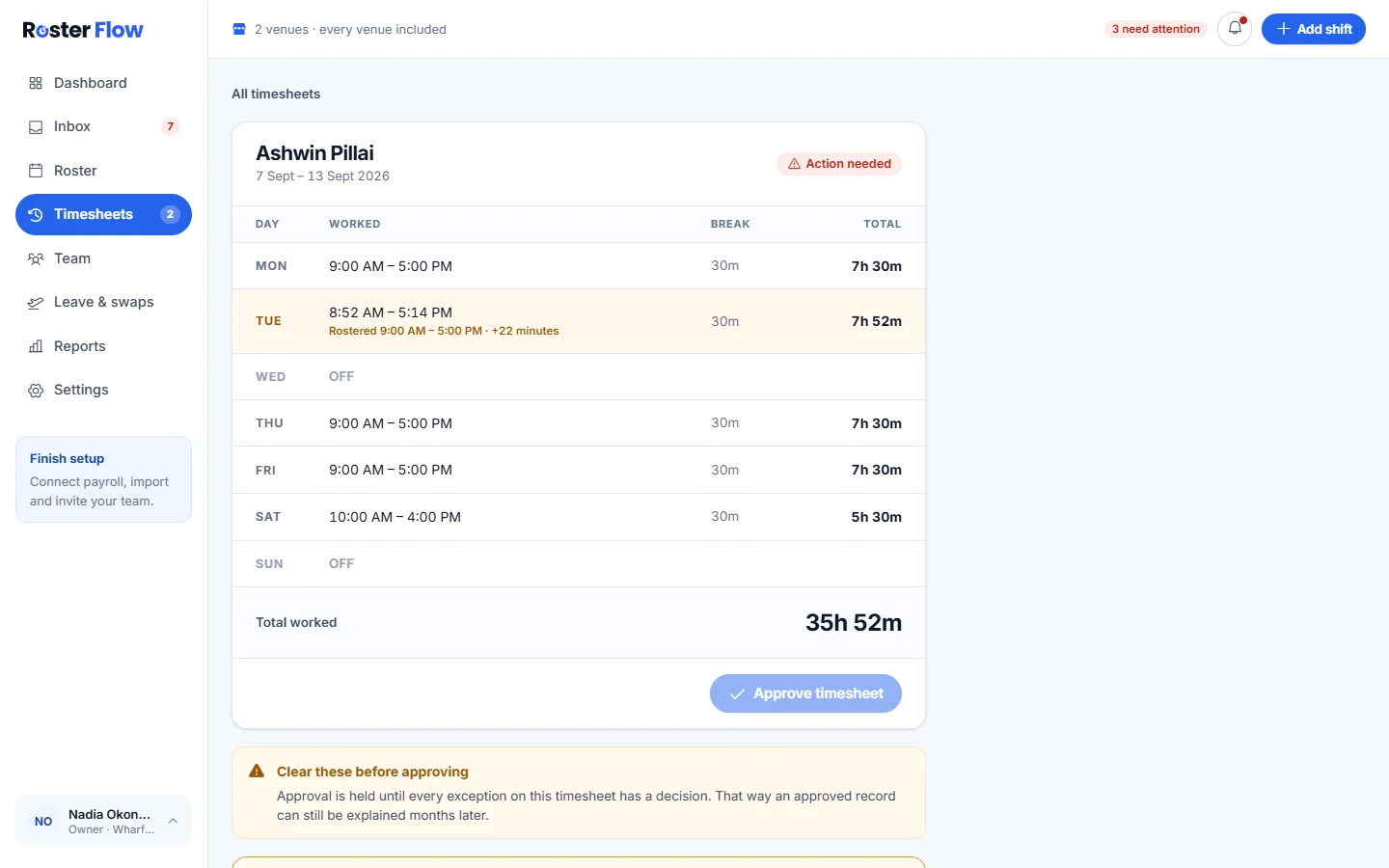
Press Fix. The timesheet lists each day’s times against the roster, and Clear these before approving lists what has to be decided first.
What each problem needs
- Missing clock-out: somebody clocked in and never out. Fix clock-out sets the finish time, or Use rostered finish takes it from the roster.
- Hours that differ from the roster, including an early start: Accept worked time keeps the clocked hours, and Use rostered hours uses the roster instead.
- Clocked away from the venue: Accept the location records who checked it and when. It does not change the distance measured or the hours.
- Correction request: the person’s own times and reason, with Approve and Reject.
- No clock-in: there is no button, because nothing here should invent hours somebody may not have worked. Ask the person to send a correction request from their phone.
- Worked without a rostered shift: Approve these hours once they have finished.
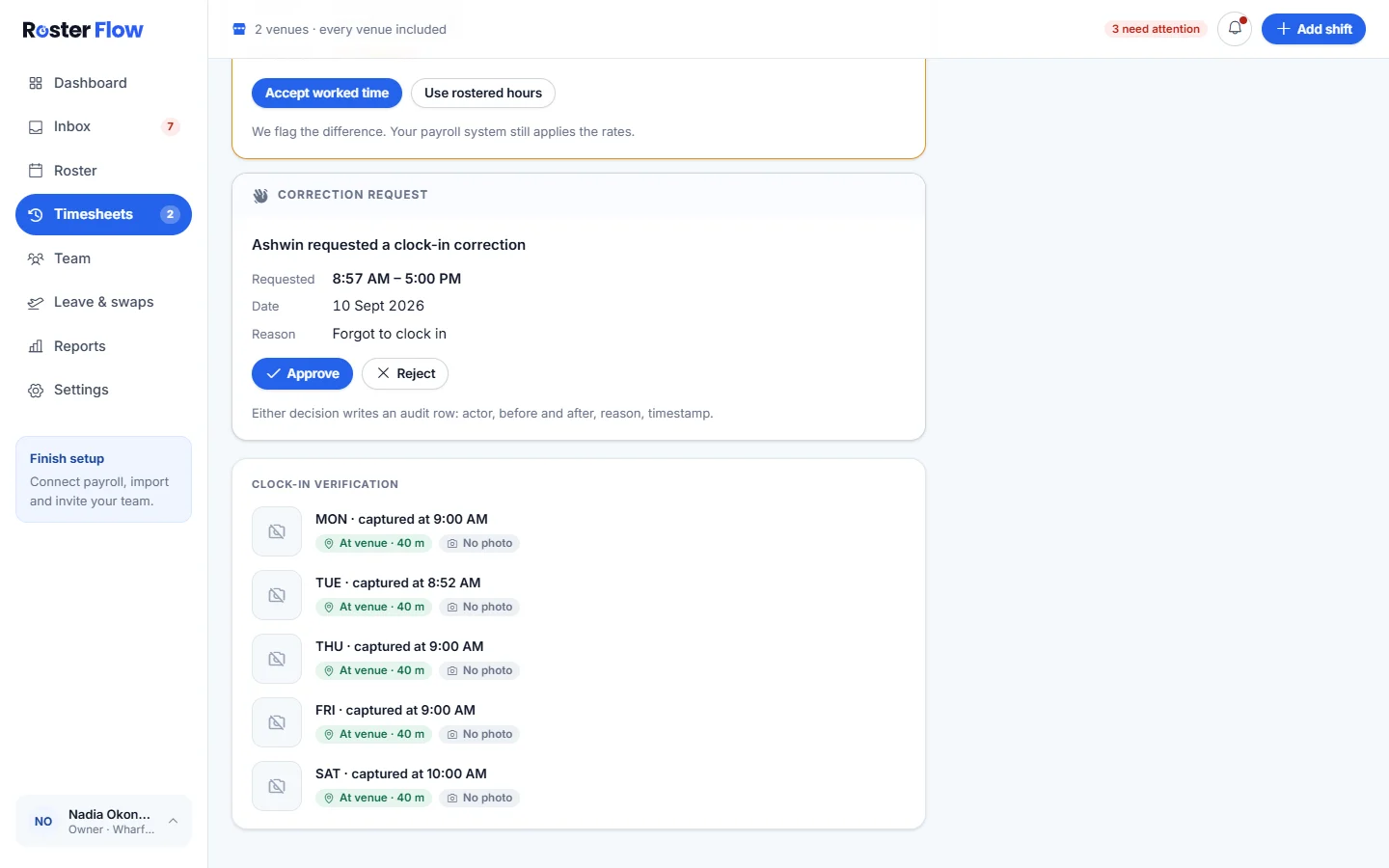
Once nothing is left, Approve timesheet at the bottom of the week approves it.
Questions
Why can I not approve a timesheet?
Something on it still needs a decision, such as a missing clock-out or a correction request. Each one is listed under Clear these before approving, and Approve timesheet works once every one is decided.
How do I fix hours for somebody who forgot to clock in?
Ask them to send a correction request from Timesheets on their phone, with their times and reason. It appears on their timesheet with Approve and Reject.
Does approving a timesheet send the hours to payroll?
No. Approving marks the hours as checked. They go to payroll only when a manager presses Send to Xero on Timesheets.
Next
Still stuck? Tell us what you were trying to do and which screen you were on.