Send hours to payroll with a CSV
No payroll connection needed, and nothing to set up. The hours by employee table downloads as a file any payroll system will take.
This is the way to get hours out on the free plan, and the way for any business whose payroll Roster Flow does not connect to. Send approved hours to payroll is the other way, which sends draft timesheets to Xero by itself and is on the paid plans.
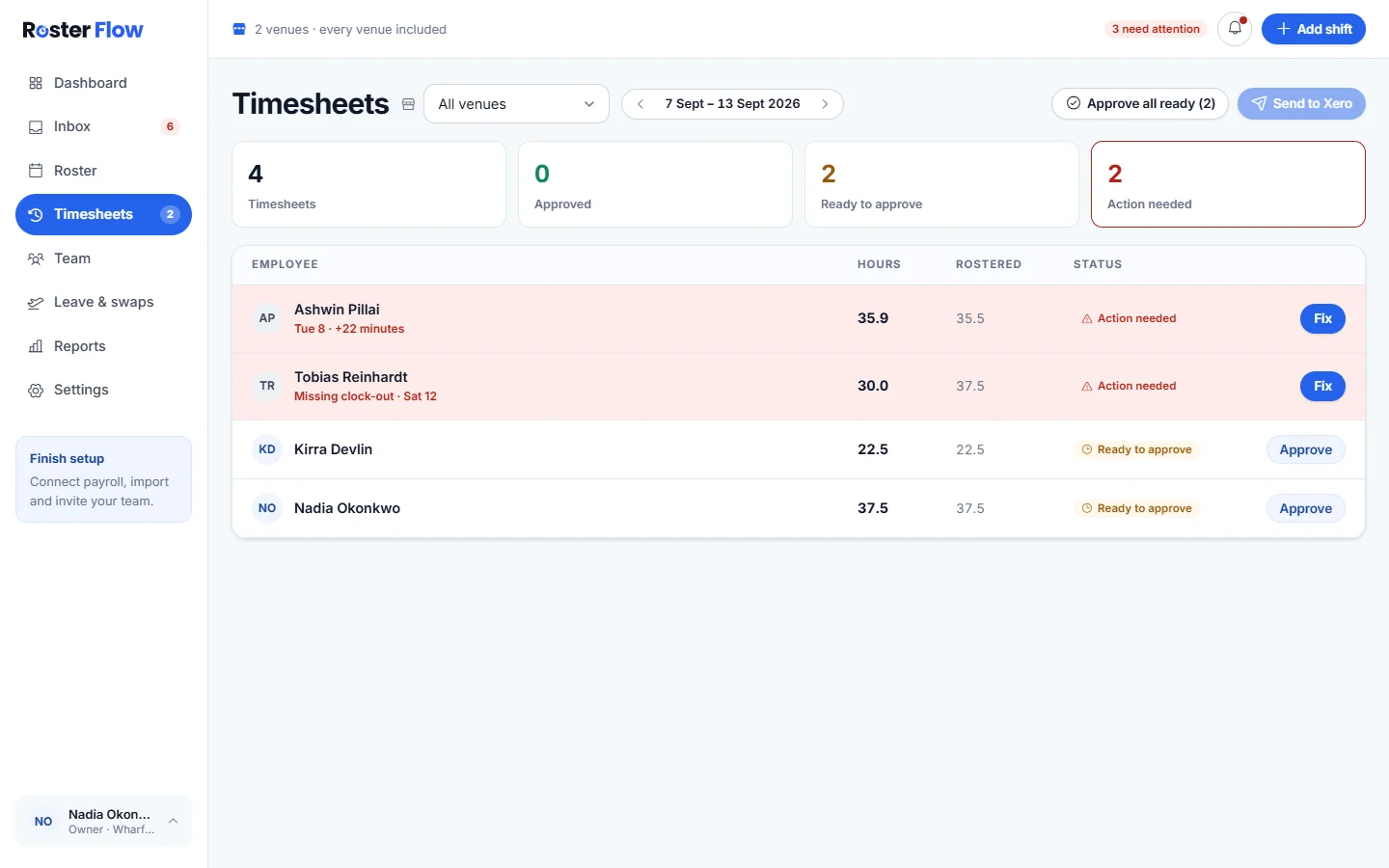
Approve the week first
This matters more than it looks. The file counts every hour clocked in the period, whether or not anybody has checked it, so clear the exceptions and approve before exporting.
Open Reports and choose the period
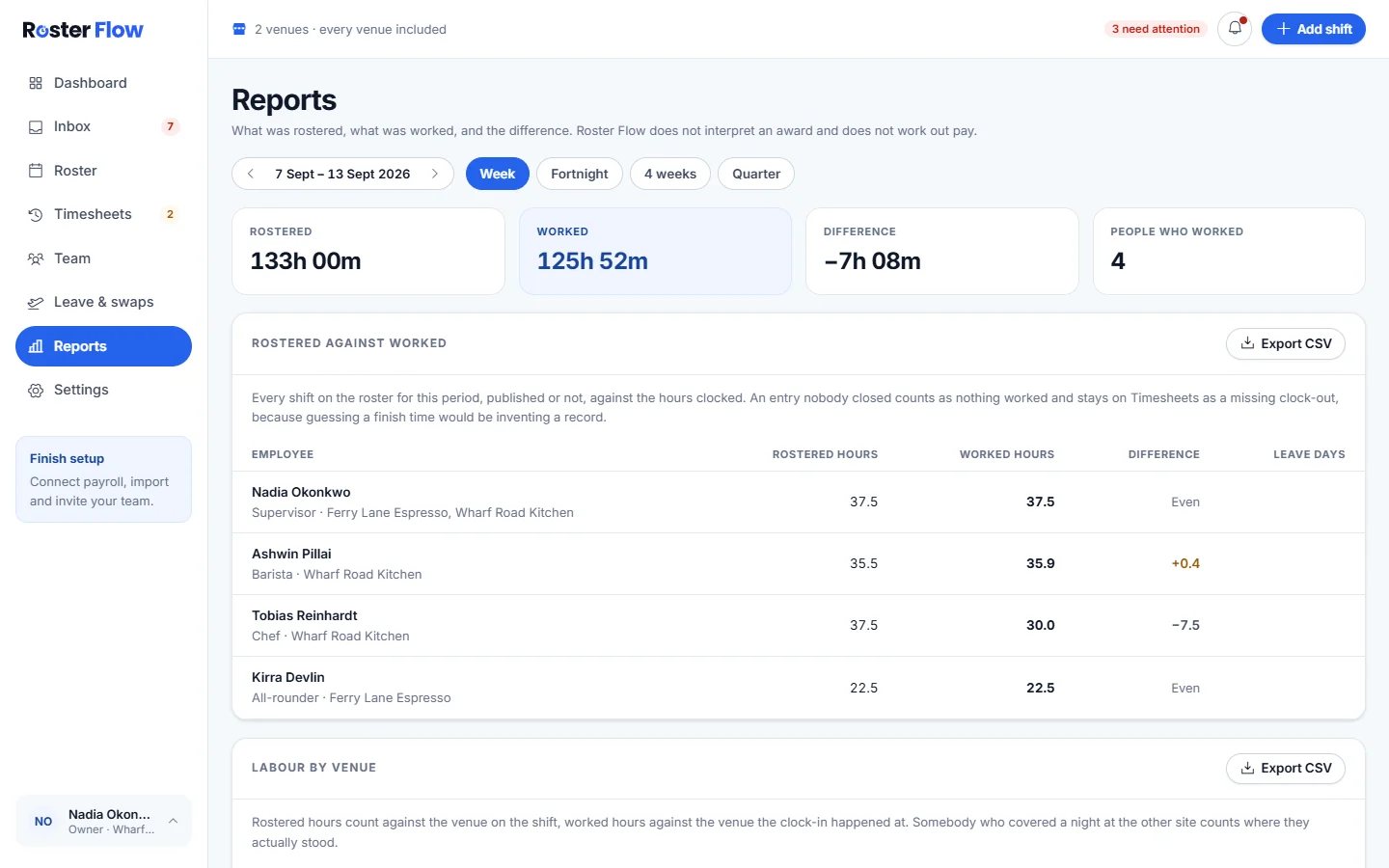
Week, Fortnight, 4 weeks or Quarter, and the week it starts from. Earlier steps back through the periods.
Export the table you want
Every section has its own Export CSV. Rostered against worked is the one with a row per person, their rostered hours, their worked hours and the difference.
Hand it on
The file is named for the table, the week it starts from and how many weeks it covers, and the period is written inside it too, so a file sitting in a downloads folder still says what it is.
What is in it
- One row per person, with their job title and venues.
- Rostered hours and Worked hours in decimal hours to two places, after unpaid breaks, with the difference between them.
- Days of approved leave that fall inside the period.
- No pay rates and no dollar figures. Nobody’s rate is in any export.
Why approving first matters
The worked hours column is every hour clocked in the period. It does not filter to approved timesheets, so a week with a missing clock-out still contributes whatever was recorded. Approving is what puts a person in front of those hours before they reach a pay run.
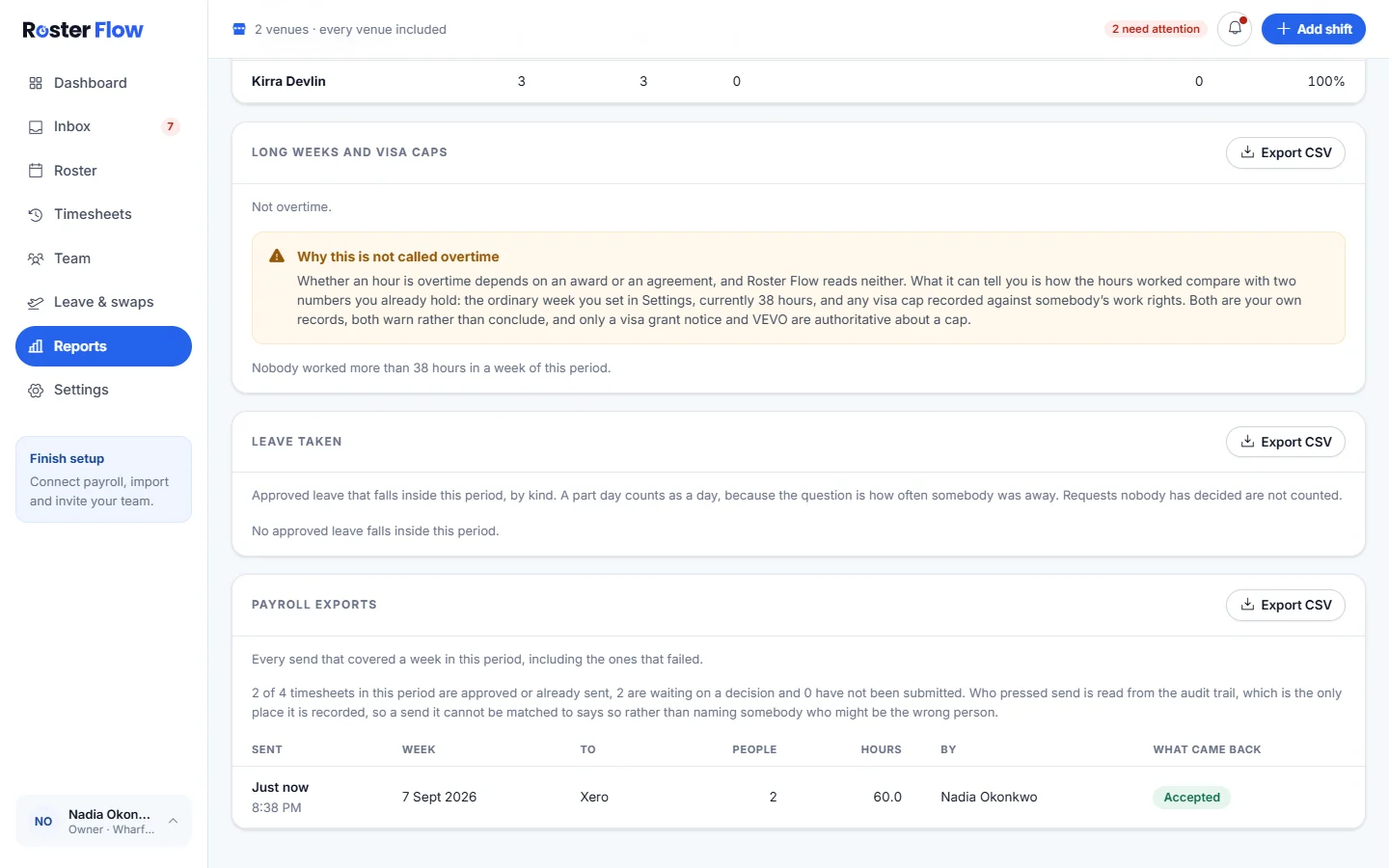
Every other table on Reports exports the same way, including late starts, leave taken and the record of what has been sent to payroll.
Questions
Which hours are in the CSV export?
Every hour clocked in the period, whether or not its timesheet has been approved. Approve the week first and export after, so the file counts hours somebody has checked.
Do I need a paid plan to export a CSV?
No. Exporting is on every plan, including the free one. Connecting a payroll system so the hours send themselves is the part that is on the paid plans.
Will the exported file show what anybody is paid?
No. No person’s pay rate is in any export. The only dollar figures anywhere in Reports are the estimated costs, and those tables say they are estimates.
Can I export a week I have already sent to payroll?
Yes. The records stay in Roster Flow, so any period of one, two, four or thirteen weeks can be exported again whenever it is needed, including one already sent.
Next
Still stuck? Tell us what you were trying to do and which screen you were on.