Clock in and out on the staff app
Everything a shift needs is on the Home tab: one button to start, one for breaks and one to finish. When something goes wrong, a correction request puts it right.
The staff app is Roster Flow on your phone, opened from the link in your invite. Along the bottom are Home, Roster, Timesheets, Time off and More. Add it to your home screen so it opens like any other app.
Clock in at the start of a shift
Open Home
Today’s shift is at the top, with the venue, the break and how long until it starts. The Clock in button says what it will check, such as Location check or Location + photo check.
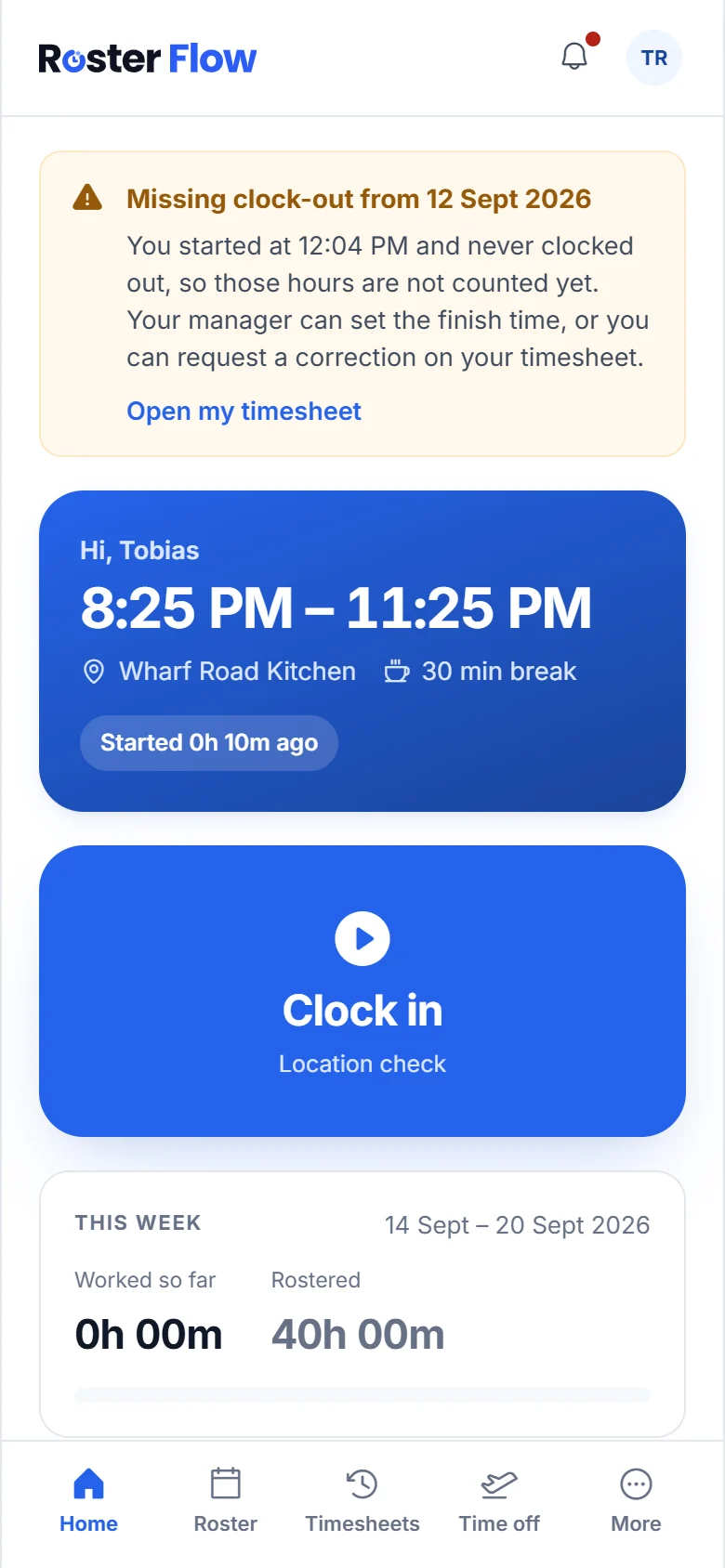
Tap Clock in
Allow location when the phone asks. The check shows the venue name and Ready once the phone has found where it is. When a photo is needed, tap Take photo, or Retake photo if it came out badly.
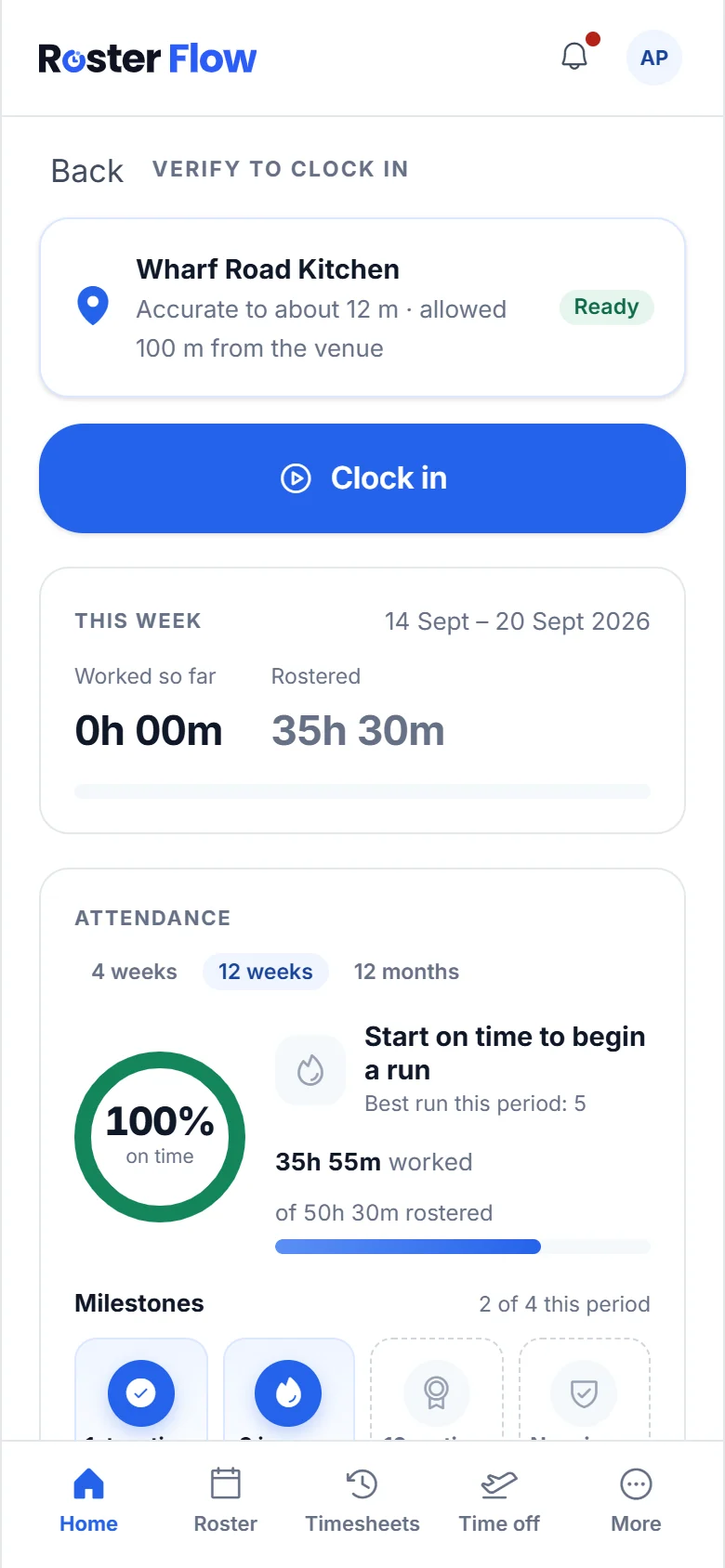
The check before the clock in is recorded. Tap Clock in again to finish
The message says Clocked in. Clocking in early is pointed out in the message, and your manager sees it too.
Breaks and clocking out
While you are working, Home shows Start break and Clock out. A break needs no location check, because you are already on site.
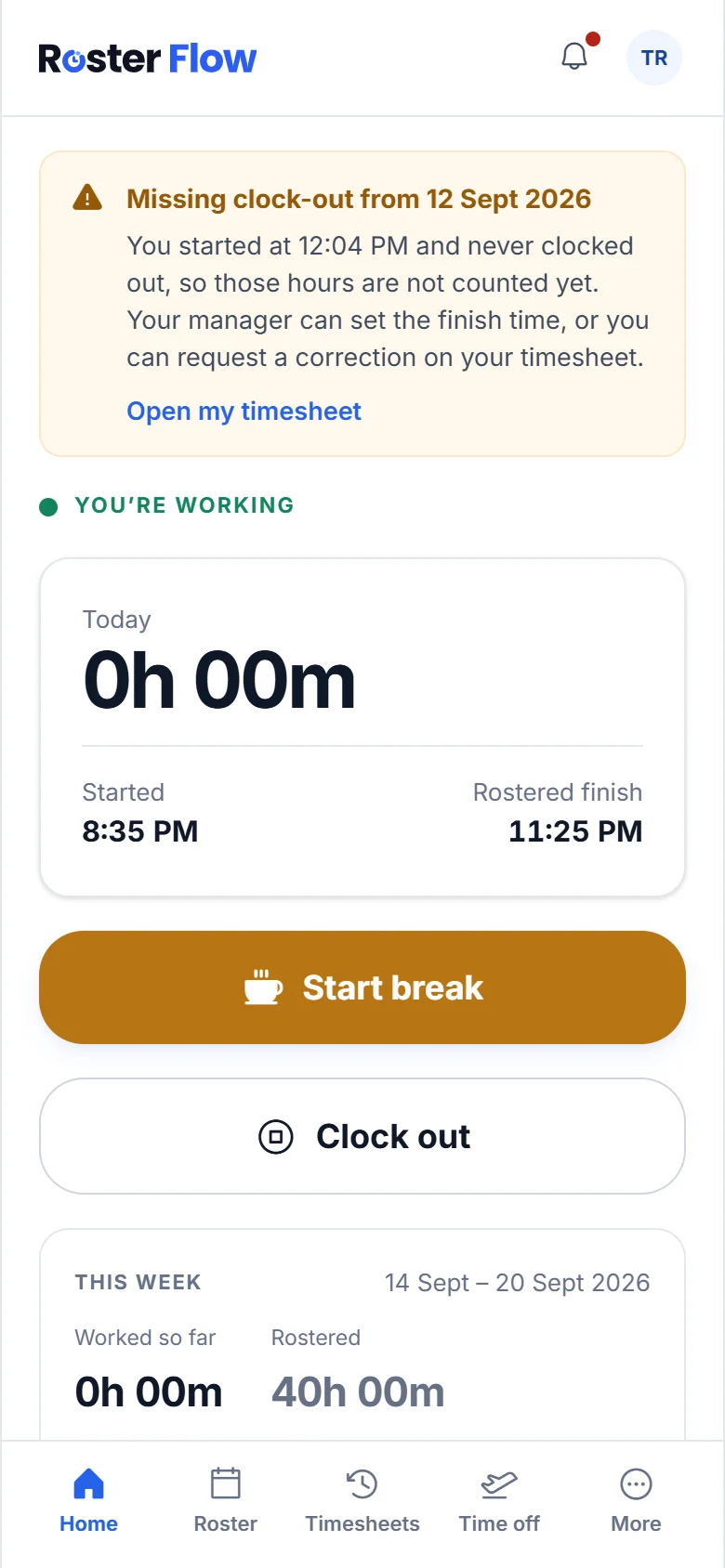
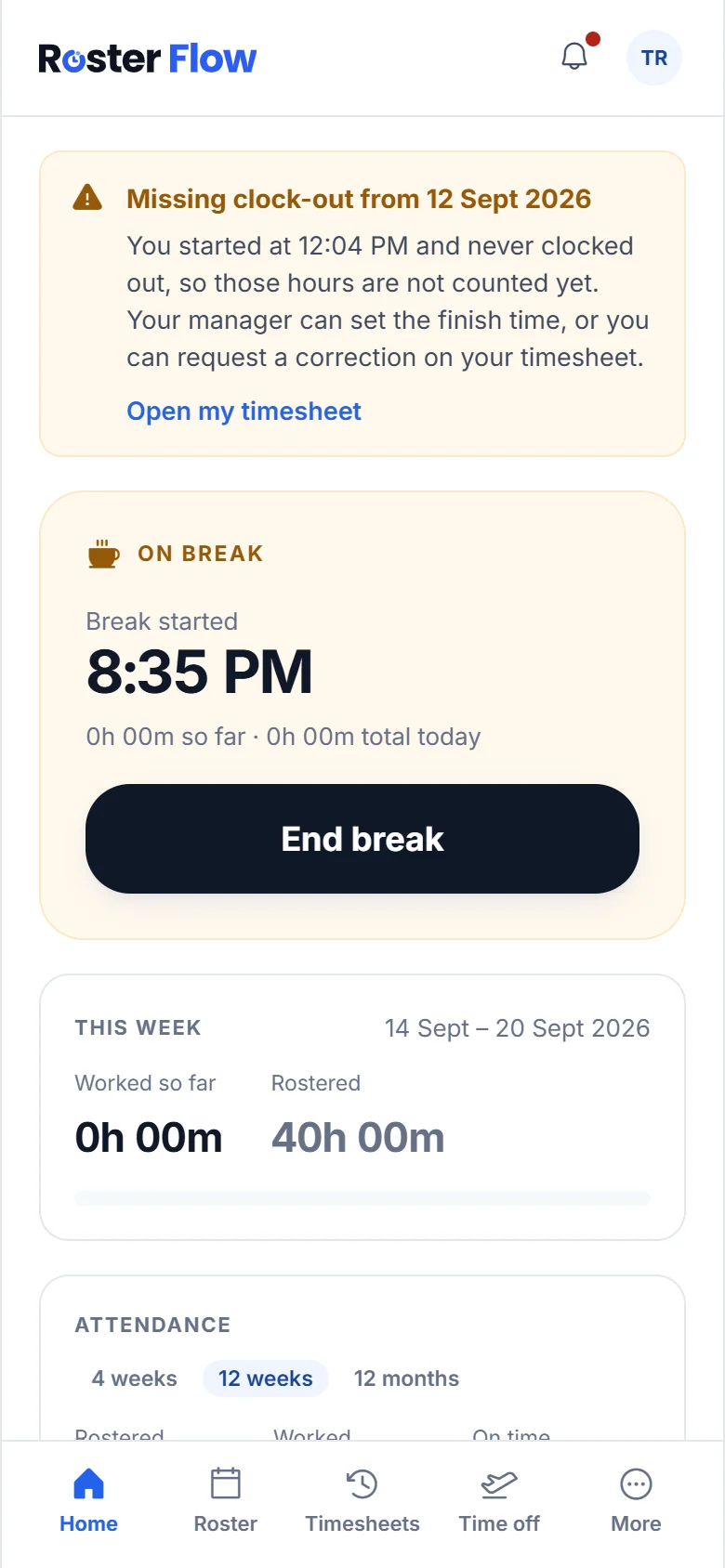
- Tap Start break when you stop, and End break when you start again. The message says Back to work.
- Tap Clock out at the end of the shift. Some businesses check your location again when you clock out.
- Forgot to clock out? Your manager sees a missing clock-out and sets the finish time.
When the check does not pass
- Too far from the venue. Depending on the business, the clock in is recorded with the distance on it for your manager to check, or it is refused. If you are at work and still refused, send a correction request.
- No location. Turn location on for your browser, or for the app, in the phone’s settings and try again. If the phone still cannot find itself, the screen says so and records that the check could not run.
- No camera. Allow the camera for the browser or the app in the phone’s settings, then tap Take photo again.
Fix your hours with a correction request
Open Timesheets
My timesheets shows a week at a time, with the time worked each day. Use the arrows beside the dates to go back a week.
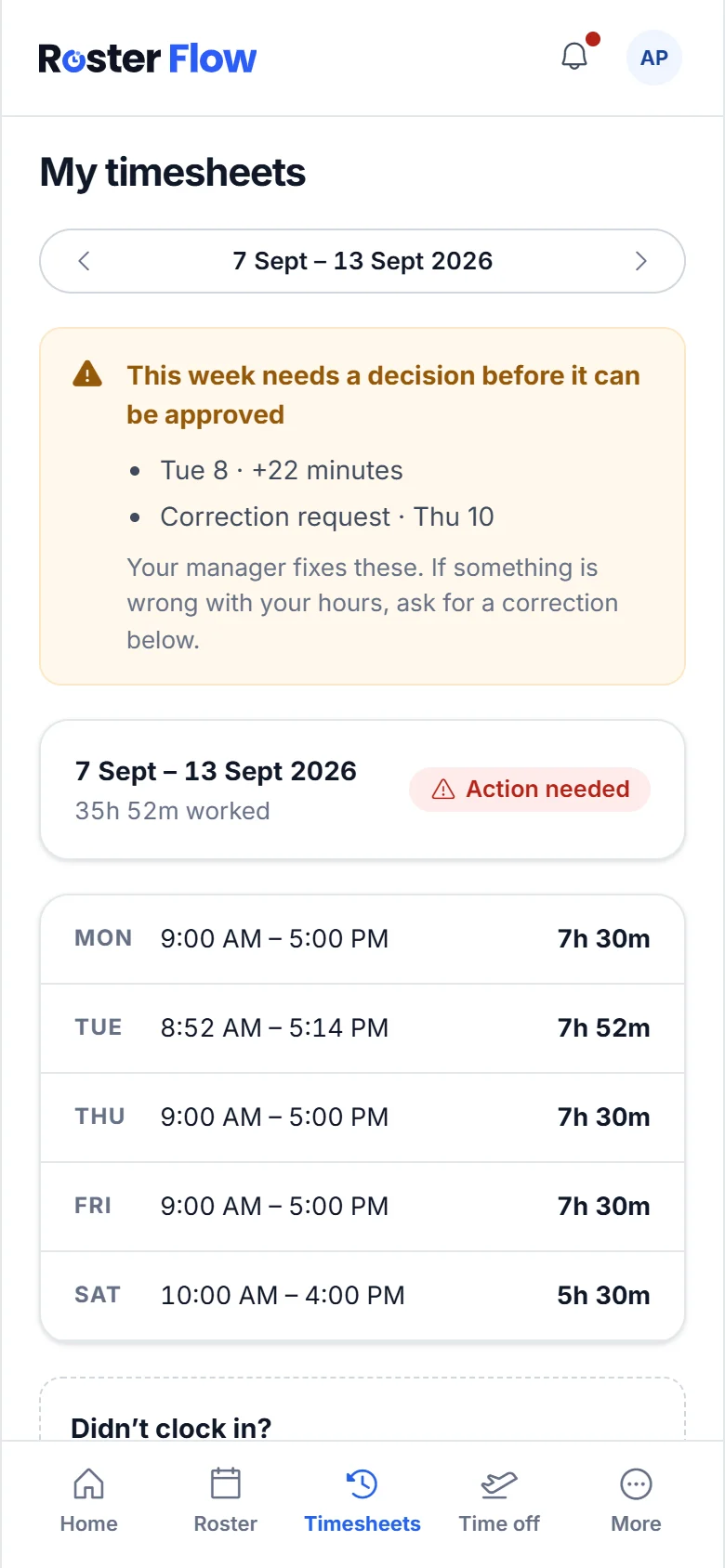
Tap Request correction
It sits under Didn’t clock in?. Fill in Which day?, which can be this week or last week, then What time did you start?, And finish?, the Unpaid break in minutes and Why?.
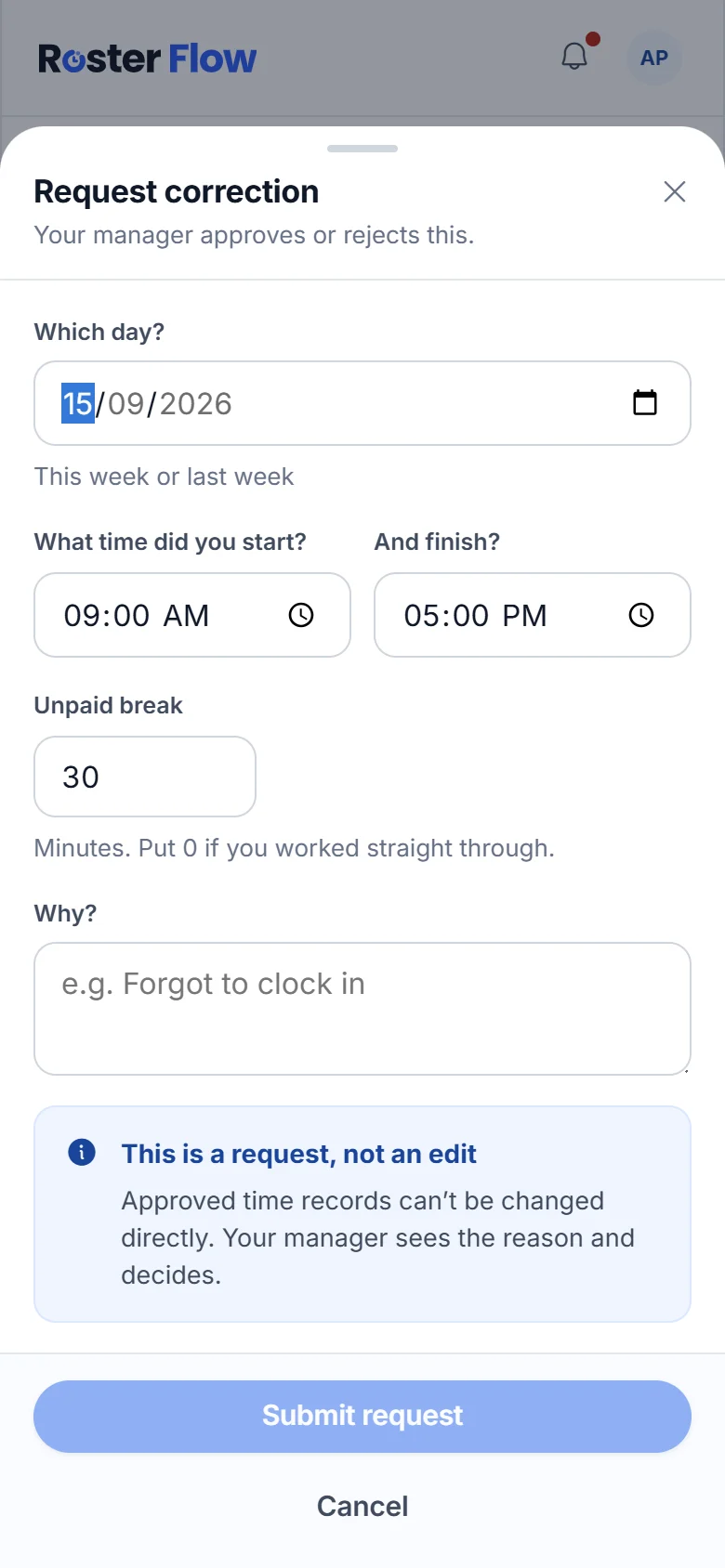
Tap Submit request
Your manager approves or rejects it. It is a request, not an edit, so nothing changes until your manager says yes.
Questions
What if I forget to clock in for a shift?
Open Timesheets and tap Request correction under Didn’t clock in? with the day, your start and finish times, the break and the reason. Your manager approves or rejects it.
When does the staff app read my location?
When your business checks location, it is read as you tap Clock in, and again at Clock out only if the business turns that on. Breaks need no location check.
Can I clock in from home before a shift?
Not when your business checks location. A clock in away from the venue is marked with the distance for your manager, or refused if the business blocks it. Clock in once you arrive.
Next
Still stuck? Tell us what you were trying to do and which screen you were on.