Check where and how somebody clocked in
Every clock in records what was checked at the time. The timesheet shows it day by day, so a question about one shift is answered from the record rather than from memory.
Open Timesheets, press Fix on a person, and scroll to Clock-in verification. There is a row for each day with something to show.
On a week where every tap was where it should have been, the section says so in one line, All 5 clock-ins were at the venue, and Show each day opens the rows. A week with anything unusual on it opens showing every day, so the one that needs reading is never a press away.
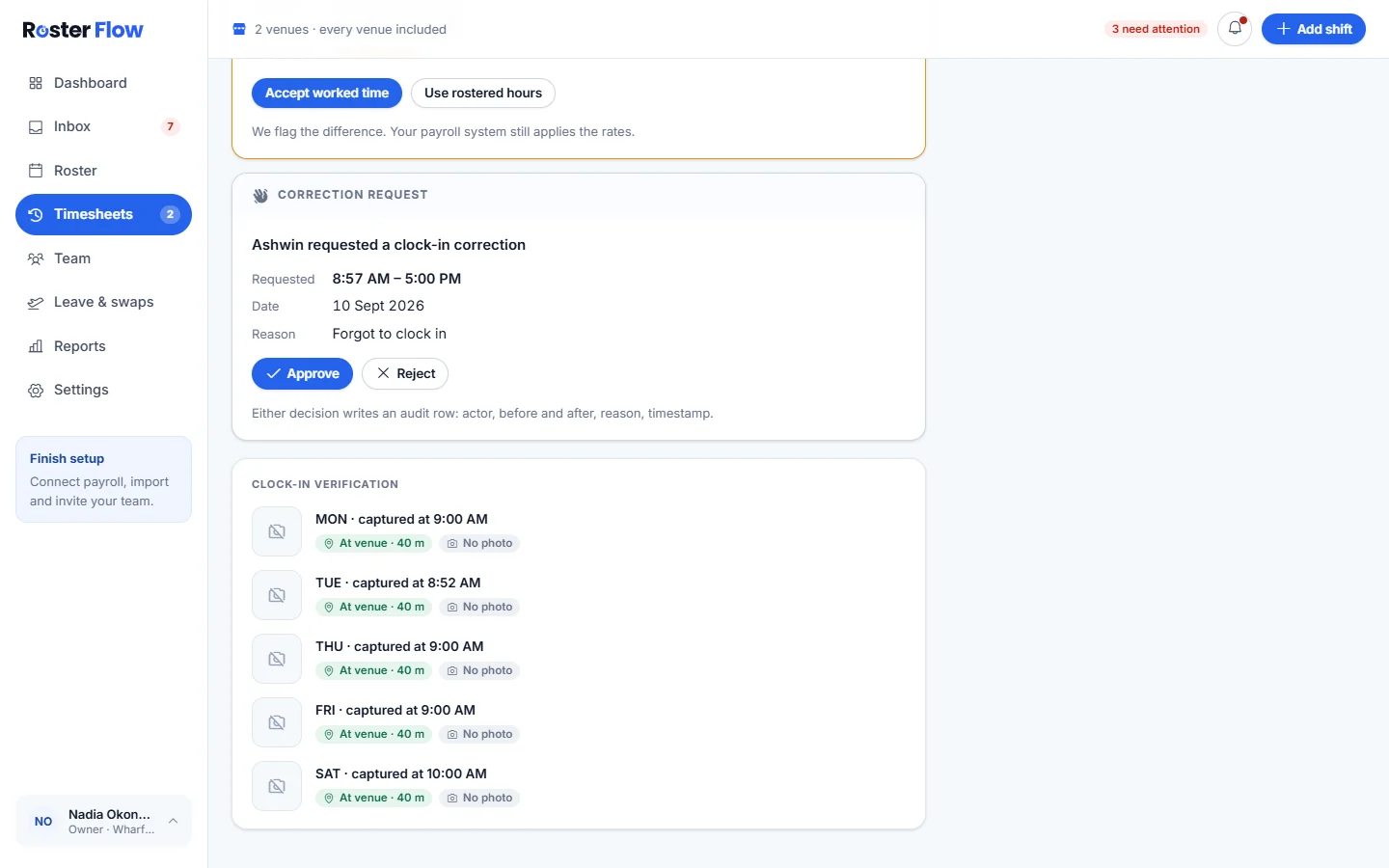
What each marker means
- At venue with a distance in metres: the phone was inside the allowed distance for that venue when they tapped.
- Out of range with a distance: they were further away than the venue allows. The hours are still recorded in full, and the distance is there so the decision is yours.
- Location not checked: location verification was off at the time, or the phone gave no position. It is not a sign that somebody avoided it.
- Photo on file or No photo: whether a photo was captured, which depends on whether the business asked for one when they clocked in.
Times that came from a phone
A venue with no signal is still a venue, so a clock in with no bars is saved on the phone and sent when the network returns, timed from the tap. The timesheet says which times arrived that way:
- Start time from their phone
- Finish time from their phone
- Both times from their phone
It means the server recorded what the phone reported rather than witnessing it as it happened. The time itself is the moment they tapped. Clock in when your phone has no signal is the same thing from the employee’s side.
Open a photo full size
A photo tile opens full size when pressed. The person approving the week is the person who needs to see it, so the photos for a clock in, a clock out and each break are on the same screen as the hours they belong to.
Questions
What does "Start time from their phone" mean on a timesheet?
They clocked in with no signal, so the tap was saved on their phone and sent when the network returned. The time recorded is the moment they tapped, not the moment it sent. Roster Flow marks it because the server reported it rather than witnessed it.
Somebody clocked in out of range. What should I do?
Decide whether the distance makes sense for that shift and accept the location on the timesheet if it does. Accepting records who checked it and when. It does not change the distance measured or the hours worked.
Why is there no photo for some days?
Either photos were not required when they clocked in, or the photo has passed the retention period the business set and been deleted. The hours are unaffected either way.
Next
Still stuck? Tell us what you were trying to do and which screen you were on.